
windwithme
-
Posts
834 -
Joined
-
Last visited
-
Days Won
1
Content Type
Profiles
Forums
Events
Everything posted by windwithme
-
windwithme COMPUTEX 2025 AI NEXT New Product Highlights
windwithme replied to windwithme's topic in CPU & Overclock
APNX introduced the LC1-D 360 and 240 all-in-one liquid coolers, featuring an integrated display capable of showing detailed hardware stats and animations. Reportedly priced around $130. The HAVN BF 360 case supports up to two 180mm fans on the front and top panels, suggesting significantly enhanced cooling potential within the chassis. COMPUTEX 2025 saw a significant increase in the number of exhibitors compared to previous years, with booth spaces fully occupied even on the 4th floor of Nangang Exhibition Center Hall 2. Due to a limited two-day visit, much of the exhibition could only be briefly explored, and some already-launched products are not covered in this article due to space constraints. Key hardware highlights included motherboards and graphics cards featuring white color schemes, rear-connector designs, and new high-end AMD products. Case designs emphasized rear-connector layouts, wider-angle glass panels, workstation applications, and creative aesthetics. Gaming monitors focused on QD-OLED technology and ultra-high refresh rates between 500Hz and 600Hz, offering enhanced visual experiences. Riding on the AI momentum of the past two years, COMPUTEX 2025 remained vibrant both inside and outside the venue. Tech giants rallied behind their partners and fueled excitement with high-profile product launches and signings. As in previous years, the exhibition featured a variety of debut products and upcoming releases set for later this year. AI servers were a major highlight, including previews of models like the upcoming GB300. The integration of hardware with AI software was showcased across a range of applications—robotics, healthcare, design, and gaming—demonstrating the expanding potential of AI technologies. For the second consecutive year, COMPUTEX adopted AI as a sub-theme, reflecting its vast potential and wide-ranging applications. We look forward to seeing even more advanced and user-friendly AI innovations in the near future. In addition, I’m sharing a two-day visual recap of COMPUTEX through photos and short videos. A great deal of time went into filming and editing, resulting in multiple Shorts videos that highlight a wide range of new product showcases. There’s also a fun “Easter egg” clip titled "Here’s What I Actually Looked At", offering a behind-the-scenes look at the event. Compared to photos, these videos bring the exhibition to life and offer a quicker, more immersive way to experience the excitement of COMPUTEX. If you found the content helpful, I’d truly appreciate your support by subscribing to my YouTube channel—your feedback is what keeps me going. Computex, see you next year. -
windwithme COMPUTEX 2025 AI NEXT New Product Highlights
windwithme replied to windwithme's topic in CPU & Overclock
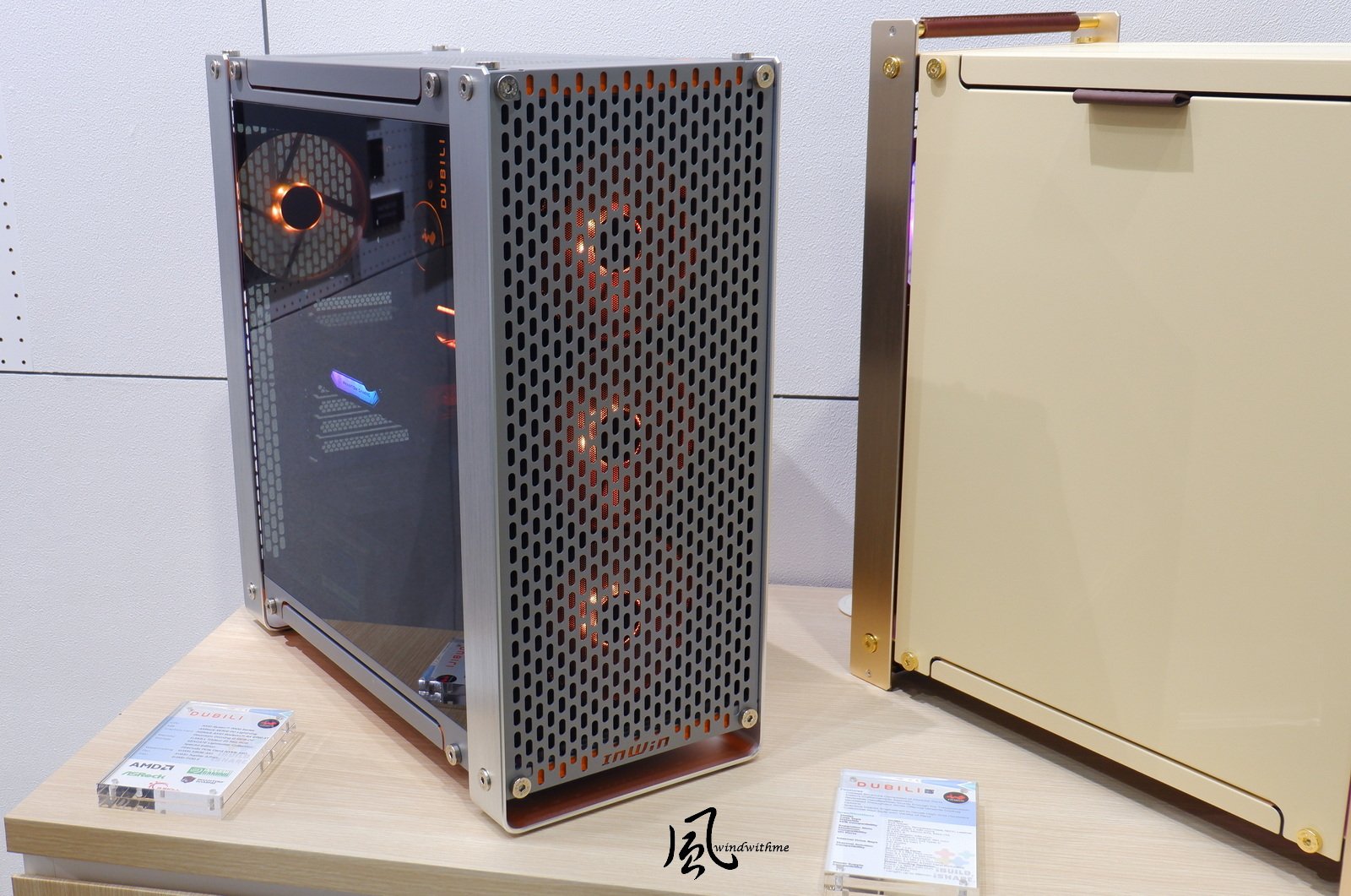
For the Intel series, ASRock focused on the ARC lineup, including the newly released ARC Pro models. The standout piece was the white Intel Arc B580 Steel Legend 12GB OC, featuring a distinctive triple-fan design in the upper-left display. Below it were the more compact B50 and B60 models. The Intel Arc Pro B60 Creator 24GB also drew attention, with hopes for a more competitive price point at launch. ASRock has shown strong momentum in rolling out graphics cards powered by the latest AMD and Intel GPUs. InWin unveiled the ChronoMancy, a 40th-anniversary concept case inspired by a trophy symbolizing a journey through time. The case features a sculpted blue industrial-grade plastic top, and an arc-shaped aluminum front panel that opens and closes via a rotating mechanism controlled by a wand-like baton. The entire motion is synchronized with music, adding a theatrical element. Standing over 1.1 meters tall, the ChronoMancy is a highly creative and thoughtfully engineered concept chassis. The SHIFT open-frame platform is built with a full aluminum chassis and features movable cooling brackets, making it well-suited for extreme overclocking and hardware showcasing. Its flexible orientation allows it to be positioned vertically or horizontally, which also makes it a practical option for use as an open-air test bench. The DLITE is a streamlined ATX case that inherits design elements from the DUBILI series. With its minimalist look accented by aluminum trims and a spacious interior, it offers a clean aesthetic and user-friendly assembly experience. On the left, the WIEW ATX case combines style and performance, offering a panoramic view and enhanced airflow design to better showcase hardware components. On the right, the TACTIX features a dual-chamber, dual-power supply layout, built to support multi-GPU systems—making it ideal for high-end gaming setups and workstation builds. The Covalent Super Tower workstation case features a tall vertical design, purpose-built for EEB motherboards and multi-GPU configurations. It's ideal for AI development, deep learning, and high-performance computing, while its exterior styling also aligns with modern gaming aesthetics. In the Ducky and sub-brand exhibition area, a wide range of products were showcased, including keyboards, mice, gaming chairs, PC cases, liquid cooling systems, and power supplies. Each year, Ducky releases a unique, limited-edition keyboard inspired by the Chinese zodiac. Last year’s model featured a lavish dragon-themed design. This year, the spotlight is on the snake, incorporating totems of the Paiwan people—an Indigenous group in Taiwan—alongside the hundred-pacer viper motif, giving the keyboard’s appearance and backplate a strong cultural identity. Additionally, Ducky also showcased a collaboration keyboard with Japanese VTuber group hololive. -
windwithme COMPUTEX 2025 AI NEXT New Product Highlights
windwithme replied to windwithme's topic in CPU & Overclock
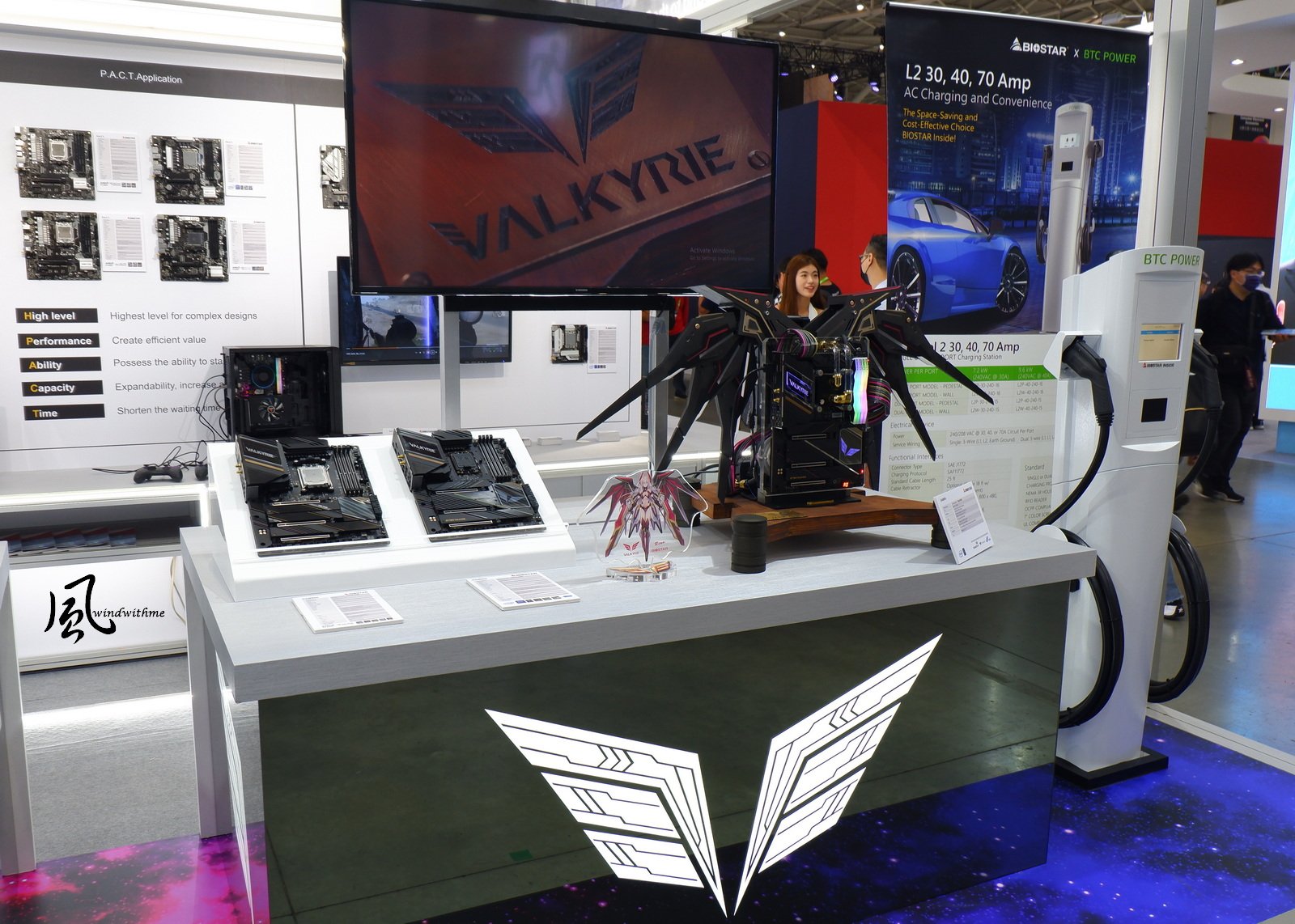
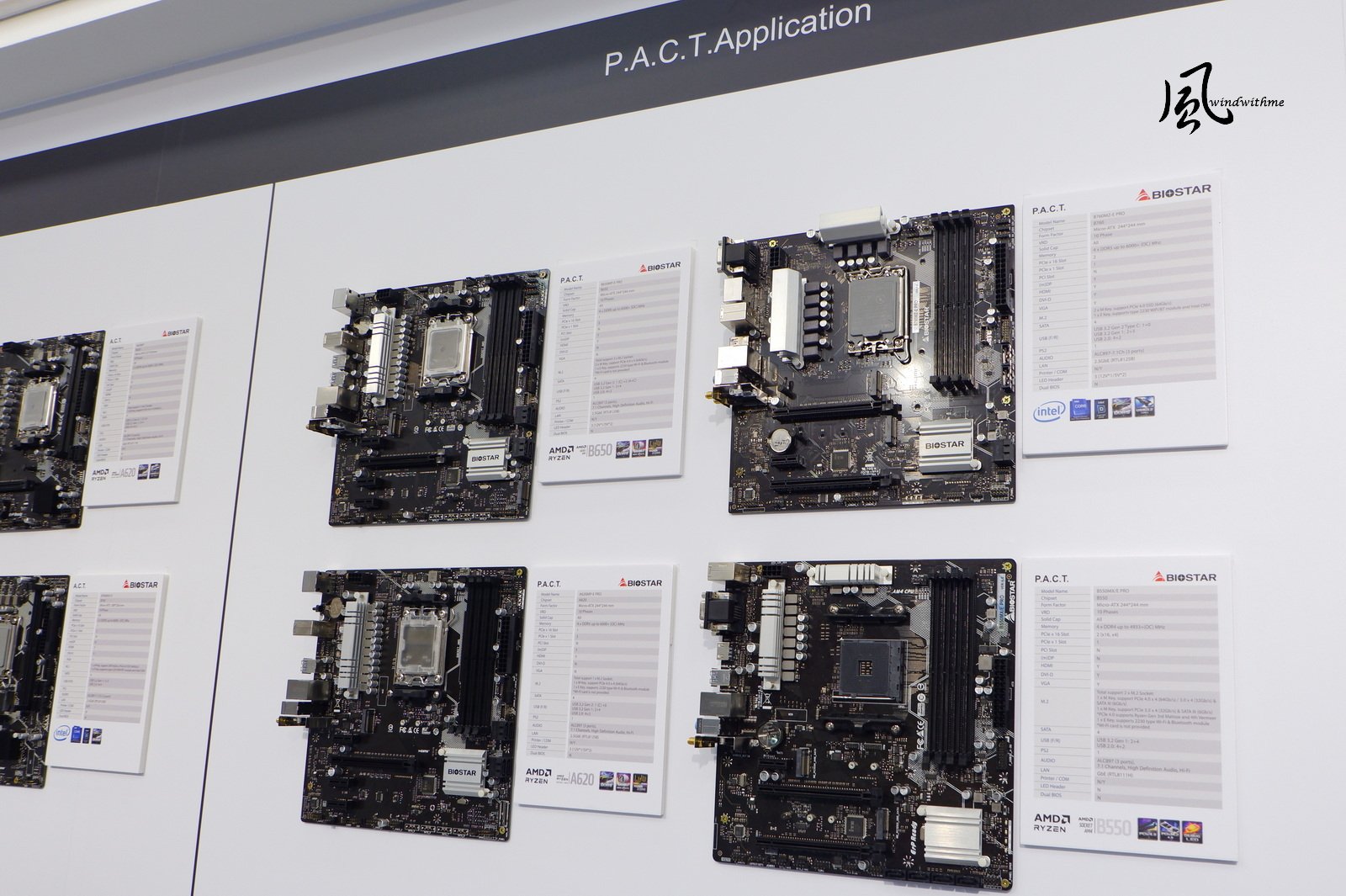
The MEG VISION X AI desktop is equipped with an NVIDIA RTX 5090 GPU, Intel Core i9-285K processor, and Silent Storm Cooling AI for advanced thermal performance. It also features a built-in 13-inch vertical AI HMI touchscreen with the new EZ Mode interface, offering a more intuitive user experience. At the ASUS ROG booth, the ROG OMNI CASEMOD drew attention with its unique robot-inspired design. The ROG Falcata is a 75% modular gaming keyboard designed for customizable layouts. The left module can be used independently for gaming-specific setups. The ultra-light ROG Harpe II Ace gaming mouse weighs just 48 grams and is equipped with a 42,000-dpi ROG AimPoint Pro optical sensor and glass tracking technology. It uses optical switches rated for 100 million clicks, and its shell is made from an innovative bio-based nylon material. The ROG CROSSHAIR X870E Hero BTF is a high-end, rear-connector motherboard designed for the AMD platform. The TUF Gaming x Hatsune Miku collaboration series incorporates Miku’s signature teal color across multiple peripherals, including the TUF Gaming H1 Gen II headset, K3 Gen II keyboard, Mini wireless mouse, and P1 mouse pad. The ROG RAPTURE GT-BE19000AI router integrates an NPU and MCU, using AI capabilities to intelligently allocate bandwidth in multitasking environments. BIOSTAR, a brand rooted in consumer-grade motherboards, showcased a wide range of entry-level Intel and AMD motherboards at the event—highlighting its strong presence in the budget-friendly segment. BIOSTAR also highlighted its high-end lineup with the Z890 VALKYRIE, a showcase build themed around the Valkyrie, emphasizing both craftsmanship and performance. The mid-range lineup includes the Z890A-SILVER and B850M-SILVER motherboards, while the B850MT-E PRO represents the entry-level segment—catering to users with different needs. BIOSTAR's entry-level boards at the show offer attractive pricing, but current market interest is leaning toward white-themed motherboards and high price-performance mid-to-high-end models. There’s strong demand for more competitive options in the SILVER and VALKYRIE series to meet these expectations. ASRock showcased several of its latest graphics card models, including the popular mid-range gaming cards from the AMD series — the 9070 and 9070 XT. On the second day of the exhibition, two newly announced 9060 XT models were also spotted at the booth. -
windwithme COMPUTEX 2025 AI NEXT New Product Highlights
windwithme replied to windwithme's topic in CPU & Overclock
Another highlight is the AI TOP ATOM, powered by NVIDIA’s GB10 Grace Blackwell chip, delivers 1000 AI TOPS, enabling secure and private personal AI computing. On the second day of the show, I started noticing some new products signed by NVIDIA’s CEO. In the laptop lineup, GIGABYTE introduced the affordable GAMING A16 PRO and A18, both equipped with the built-in AI assistant GiMATE, which enables multiple AI features via a simple Press and Speak voice command. Coming soon, GiMATE Creator is designed to boost creativity and productivity, helping beginners generate code through an intuitive AI-driven interface. https://i.imgur.com/z9Opg32.jpeg The AERO X16 combines high performance with a full feature set. Its eco-conscious packaging is cleverly designed to double as a laptop stand. MSI has been dedicated to the laptop market for many years, steadily building a diverse product lineup and increasing its visibility in the industry. In addition to its strong presence in laptops, MSI continues to make waves with its gaming handhelds, regularly releasing new models based on the latest architectures—keeping the buzz going strong. The flagship Titan 18 HX – Nordic Mythology Dragon Soul Collector’s Edition features a premium titanium-textured chassis with 3D dragon embossing, up to Intel Core Ultra 9 285HX and NVIDIA RTX 5090 Laptop GPU, Cherry MX mechanical keyboard, and an exclusive Dragon Soul accessory set. MSI OverBoost Ultra Technology delivers 270W CPU & GPU. A live demo using Prime95 and FurMark pushed the CPU and GPU to full load, highlighting its excellent thermal performance. The Claw A8 BZ2EM made its debut featuring AMD’s latest Ryzen Z2 Extreme processor. It comes in green and white, with an 8-inch FHD+ 120Hz touchscreen and versatile I/O ports. Also on display was the Claw 8 AI+ Polar Storm Edition, originally launched earlier this year. This version now comes in white, with an upgraded 2TB SSD and is powered by Intel’s Lunar Lake processor. The two 8-inch Claw models, built on different architectures, also feature noticeably different grip designs. The MSI Prestige 13 AI+ Ukiyo-e Special Edition features design elements inspired by The Great Wave off Kanagawa, the iconic woodblock print by Katsushika Hokusai, as part of MSI’s craftsmanship showcase series. MSI also unveiled a new industrial design concept for future business laptops, featuring an ultra-thin profile at just 13.9mm and a sleek, rounded, minimalist look. These models are expected to be powered by Intel’s upcoming Panther Lake platform. MSI introduced the new MPG 271QR QD-OLED X50, featuring Samsung’s 3rd-gen QD-OLED panel, with a 2K resolution, 500Hz refresh rate, and ultra-fast 0.03ms GTG response time. It also includes an AI Care Sensor that automatically puts the screen into sleep mode when no user is detected within 120cm. The MAG 272QP QD-OLED X50 offers the same high-end specs—3rd-gen QD-OLED panel, 2K 500Hz, and 0.03ms GTG—delivering top-tier performance for competitive gaming. -
windwithme COMPUTEX 2025 AI NEXT New Product Highlights
windwithme posted a topic in CPU & Overclock
Get a quick glimpse of the latest drops from multiple brands on our YouTube Shorts! Head over to our playlist section for an easy way to catch up on all the newest arrivals in one go. My first visit to COMPUTEX dates back to 2004—hard to believe it’s been 22 years since then. Over the years, the tech industry has seen its ups and downs, from quieter periods to the explosive growth of the gaming era, and now the resurgence brought on by AI. Through it all, COMPUTEX has stood as a witness to the ongoing evolution of technology and innovation. Ever since NVIDIA sparked the AI trend during COMPUTEX 2023, the buzz around AI has remained strong. Over the past two years, most brands have been working hard to align their new hardware and software with AI capabilities. This year’s COMPUTEX 2025 carries the theme "AI NEXT", continuing the momentum from last year. Once again, tech giants NVIDIA, AMD, and Intel are taking the stage in Taipei, with global media coverage driving excitement to new heights. Even before the official opening of the show, many brands had already held their own product launch events. In addition, there are numerous keynotes and technical forums happening throughout COMPUTEX. Due to overlapping schedules, I was only able to attend a few of them. One of the first highlights was Intel’s announcement of two new ARC Pro GPUs designed for workstations. The ARC PRO B50 comes with 16GB of memory and is priced at $299 USD. The higher-end ARC PRO B60 features 24GB of memory, and based on partner estimates, is expected to be priced between $500 and $1,000 USD. On-site, Intel showcased a performance comparison between the ARC Pro B50 GPU and the NVIDIA RTX A1000. Also on display was a sample of Panther Lake, which is currently expected to launch in early 2026. It may first debut in the laptop market. At the Intel booth, several zones were dedicated to showcasing AI applications. One notable demo featured a 200HX series laptop running an interactive AI Game Play Coach developed by GGQ. This tool provides real-time suggestions on gameplay strategy and player performance, offering helpful guidance during in-game scenarios. A sofa design demo showcased how Adobe Substance 3D Sampler can convert real-world object images into realistic 3D PBR materials. This approach significantly reduces the time and effort required compared to traditional material creation workflows. The Face of Innovation AI photo booth allowed visitors to experiment with various appearance transformations and background styles. After customizing their look, users could print their final image on the spot. This year, software integration with AI is more widespread than ever, offering practical benefits for users with specific creative or functional needs. This year, COMPUTEX attracted over 1,400 exhibitors for the first time. With so many brands and new products showcased across the Nangang Exhibition Center, both visiting time and article length were limited. Below, I’m sharing highlights from a few brands that personally caught my interest or took extra time to introduce their latest offerings during my visit. First up is GIGABYTE & AORUS. Under the theme “LEADING EDGE”, GIGABYTE showcased a range of new AI solutions for gaming and content creation, aiming to accelerate AI adoption through upgraded hardware and software. On the motherboard wall, the STEALTH ICE series motherboards feature a sleek white design and rear-connector layouts, reducing cable clutter for cleaner builds. The new Z890 AORUS TACHYON ICE C2 supports CAMM2 memory. The AORUS RTX 5090 STEALTH ICE graphics card also uses a rear-connector design. The external GPU , the AORUS RTX 5090 AI BOX, boasts over 3000 AI TOPS of computing power. Compared to the previous generation 4090 GAMING BOX, it delivers a significant boost in both gaming and AI application performance. -
The website also compares different scenarios, such as the Phantom Array Effect – Mouse Arrow, which illustrates the differences when moving the mouse pointer at various refresh rates. The G-Sync Pendulum Demo test can be found on the NVIDIA website. FreeSync and G-Sync are both technologies designed to reduce screen tearing and stutters. The VX2758A-2K-PRO-3 comes with AMD FreeSync Premium tech, which can be enabled with both NVIDIA and AMD GPUs. With V-Sync enabled, no tearing can be seen in the pendulum test, and the motion appears smooth. But without V-Sync enabled, the pendulum shows tearing and lag. Further testing with refresh rates from 60Hz to 240Hz revealed that the lower the refresh rate, the more noticeable the tearing or stuttering in No V-Sync mode. When the refresh rate is increased to 240Hz, instances of tearing are rare and much less pronounced. With more and more monitors with HDR technology appearing on the market, models with HDR tend to be priced higher than others with similar specs. HDR is designed to enhance the display by showing more details in both the bright and dark areas of an image, making colors appear more vibrant. Here's a comparison of the difference when HDR is turned on and off, with the same OSD settings. With HDR turned off: With HDR10 enabled: Some image quality is lost when the screen is photographed with a camera, as here. The actual difference in visual quality is even more noticeable when seen in person. Games and videos with HDR enabled do indeed have a better appearance. When using a Spyder color calibrator to compare color accuracy against the factory settings, the default settings tend to be warmer in tone. Colors tend to be cooler after calibration with a Spyder3 Pro, but will still depend on individual users' preferences. For those who like to fine-tune their color settings themselves, the built-in OSD offers a wide range of options with a high degree of flexibility. For those who prefer calibrated settings but are unfamiliar with adjusting the OSD, a calibration file can be found on the windwithme fan page. Moving on to the gaming experience, as 2K resolution doesn’t increase the 3D workload significantly compared to 1080p, if the graphics card is powerful enough, it allows more games to run at higher frame rates. Additionally, 2K offers better clarity than 1080p, making it relatively suitable for use on a 27-inch monitor. The following uses the nVIDIA RTX 4070 Ti SUPER to enhance the frame rates of these 3D games under high graphics settings. When it comes to fast-paced racing games, high frame rates, response time, and Sync technologies are all crucial. The VX2758A-2K-PRO-3 delivers smoother gameplay for FPS games, racing games, and other games with quick movements and motions. I play Diablo 4 a fair bit, and I'm pretty familiar with its graphics. The recent release of Season 6 and the new expansion have sparked a lot of discussion online. Swarms of monsters appear during the Infernal Hordes mode. While the 3D effects appearing on the screen can be visually overwhelming, the gameplay still remains extremely smooth. Besides playing these games, I also ran several in-game tests to check the smoothness of the 3D visuals at high frame rates and refresh rates. The IPS panel's color saturation is more vivid and vibrant, and its viewing angle is superior, compared to the VA gaming monitor I've been using for years. The monitor is advertised as fully compatible with both PS5 and Xbox, supporting these consoles' maximum refresh rate of 120Hz. The actual power consumption during use was about 18.3W when in default mode with HDR enabled and brightness set to 30, and about 24.4W after the brightness was increased to 60. Before now I had believed that a refresh rate of about 170Hz was more than enough, but after comparing various high-speed moving images I now feel that to be somewhat lacking. It's no wonder that gaming monitors have been evolving towards refresh rates of 200Hz to 300Hz or more in recent years. To summarize the features of the ViewSonic VX2758A-2K-PRO-3 gaming monitor: it features an IPS panel with a 240Hz refresh rate, 1ms response time, AMD FreeSync Premium, HDR10, and Eye ProTech eye-care technology. It delivers a solid performance in both image quality and gaming experience. That's all from me on the VX2758A-2K-PRO-3. If you're looking for a mid-range 27-inch gaming monitor that would also serve well for watching videos or for work, this model is definitely worth your consideration.
-
The monitor tilts up to 20° upwards. The rear has three sloped sides in a trapezoidal design. With the base positioned flush against the wall as in this photo, the distance between the wall and the screen is approximately 14cm, and approximately 18cm to the furthermost edge of the base. This allows for more usable desktop space even on relatively shallow desks of 60cm or less. OSD Menu: Moiré patterns often appear when shooting an LCD screen with a digital camera, but the screen appears as normal to the naked eye. The OSD has a quick setup mode, with up, down, left, and right direction buttons on the back of the monitor, making it easy to navigate. The menu is divided into six pages. HDMI1, HDMI2, and DisplayPort can be selected as input sources. The monitor has no inbuilt speakers, so the audio settings page is intended for use with 3.5mm headphones or external speakers. View Mode: A total of 9 options, including Standard, FPS Game, RTS Game, MOBA Game, Movie, Web, Text, MAC, and Mono. Color Adjust: Contrast/Brightness, 6-axis Color, Color Temp, Color Mode, Color Space, Color Range, HDR10. The Color Mode menu offers sRGB, AdobeRGB, DCI-P3, Rec. 709, and Default options. 6-axis Color allows advanced adjustments to be made to reds, greens, blues, cyans, magentas, and yellows. With Color Mode set to DCI-P3 when I shot this picture, some options have been grayed out. These can be tweaked when Color Mode is set to Native. Manual Image Adjust: Sharpness, Blue Light Filter, Aspect Ratio, Overscan, Black Stabilization, Advanced DCR, Response Time. Response Time can be set to Standard, Advanced, or Ultra Fast. The Setup Menu has two pages of options. The first page includes the following: Language, AMD FreeSync Premium, 1ms Mode, Resolution Notice, Information, OSD Timeout, OSD Background, Power Indicator, Auto Power Off, Sleep, ECO Mode, and DisplayPort 1.1. The Language menu offers 15 different languages to choose between. The second page includes Auto Detect, DCC/CI, and Memory Recall. Auto Detect assists with rapid source input switches when multiple devices are connected. The OSD menu is quite comprehensive for gaming purposes, and even provides enough options and adjustments to meet the requirements of creative work such as graphic design or video production. The UFO Test webpage tests a monitor's refresh rate. The differences may be indistinguishable when captured by a Windows screenshot, so this article uses frame grabs from video footage of the monitor. Please see the video referred to in the article for the detailed high-speed tests. With Pixels Per Sec set to 960, when watching in real time, the white horizontal bar that appears along the center of the UFO icon appears clearest at 240 fps, while at 120 fps it is relatively blurred. Distinguishable differences start to appear when Pixels Per Sec is set to 480 or higher, and the higher the speed, the more noticeable the difference.
-
In this video I share gameplay footage from several games: Along with the rapid growth and development of the gaming industry, monitors designed especially for gaming have become more and more prominent in the market in recent years, and many brands have launched their own lines of gaming monitors to meet this growing demand. This article looks at ViewSonic's VX2758A-2K-PRO-3, a gaming monitor that boasts a 240Hz refresh rate combined with a 1ms MPRT (Motion Picture Response Time). Overview of the contents: The VX2758A-2K-PRO-3 unit itself, power cable, stand and base, HDMI cable, and DisplayPort cable. It comes with a full 3-year warranty, and one year of warranty against dead pixels. Appearance after installing the stand and base: Including the base, the overall dimensions are 61.4 x 36.6 x 4.7 cm, with a total weight of approximately 4.9 kg. The monitor boasts a 27-inch SuperClear IPS anti-glare panel with a 16:9 aspect ratio and a 2K Quad HD resolution. The 240Hz refresh rate and 1ms MPRT make it especially suitable for the rapid pace of gaming environments. The IPS panel supports the HDR10 standard, with a brightness of 300cd/m², a 178-degree viewing angle, and 1.07 billion colors (10-bit: 8-bit + FRC). The static contrast ratio is 1000:1, and the dynamic contrast ratio is 8M:1. The surface has a 3H hard coating. The color gamut covers 92% of NTSC and 130% of sRGB, while Eye ProTech technology reduces blue light and ensures flicker-free performance. AMD FreeSync Premium technology synchronizes the monitor's refresh rate with the graphics card's output. Full view of the rear: The outer casing features a matte finish at the top and bottom, with a brushed metal texture at the centre. The button visible at the bottom quickly releases the monitor from its stand. The ViewSonic logo appears in silver at the top. Long slots for ventilation appear to the left and right. At the centre are 100 x 100 mm holes for VESA-supported wall mountings. The power button, which doubles up as an OSD joystick control, appears at the lower-left of the back. From left to right, the I/O configuration includes 2 HDMI 2.1 ports, DisplayPort 1.4, and a 3.5mm audio output. HDMI ports are relatively common, and having two of them here makes it easy and convenient to switch between multiple devices such as desktop computers, laptops, and gaming consoles. The power input appears at the lower right, and above that is a slot for a Kensington lock. Underneath is a long slot for ventilation. The power consumption specs are 28W as standard, up to a maximum of 30W; and 24W and 19W when in power-saving mode and Eco Mode respectively. The base is flat and level, making it convenient to place items on top of it, and quite stable overall. The logo features three Gouldian finches and makes a colorful impression. The stand can be tilted downwards by up to 5°. A power indicator light appears at the lower-right edge of the frame. The screen itself has a frameless design along the top, left, and right sides, giving it an enlarged appearance.
-
The Setup Menu includes two pages with tabs for Language, Resolution Notice, Information, OSD Timeout, OSD Background, OSD Pivot, Power Indicator, Auto Power Off, Sleep, ECO Mode, DisplayPort Version, DisplayPort MST, HDMI Version, DDC/CI, Auto Detect, and All Recall. For daisy chaining, DisplayPort versions 1.1 (without MST), 1.2, and 1.4 are supported. The VG2757V-2K features a rich array of OSD options, with an emphasis on its ease of use in office and conferencing environments. In addition to these functions, it also provides a high degree of freedom and flexibility with regard to color. vDisplayManager also includes many OSD functions, which would be more convenient than using OSD buttons located on the back of a monitor. However, with the touch buttons located on the front of the VG2757V-2K, along with various other shortcuts, in practice users may find these more intuitive to use than the software. Now let's look at the monitor in action. I felt that the webcam's performance and image quality were quite good during video calls made with Skype and Line. With its adjustable color temperature and brightness, the LED fill light had a good effect, and the ability to tilt the angle was somewhat useful, too. I'm including here a picture from the ViewSonic website demonstrating a video conference with multiple participants, which shows how a dual monitor setup using the VG2757V-2K might improve efficiency at work. I connected an HDMI cable that supports a 100Hz refresh rate and opened the UFO Test website to test the screen's refresh rate. The difference is not noticeable from Windows screenshots, so this article uses frame grabs from the recorded video instead. Please see the video embedded within this article for detailed dynamic tests. Of the three frame rates tested, 100fps performed the clearest, while static screenshots depended on the number of frames per second. It was immediately apparent that 100fps had the most frames and relatively clearer separation, which marked the biggest visible difference between them. In the vertical text scrolling test, the frame grabs from the video likewise show that 100 fps had more frames that appeared to be more distinctly spread out. In the video, the higher frame rate shown on the left is both smoother and clearer. With the HDMI port's refresh rate upgraded from 60Hz to 100Hz, these specs are more than adequate for the demands of an office environment. Here is my subjective experience of listening to the VG2757V-2K speakers: With the volume turned all the way up, the sound is loud for an indoor environment: there would not be any issues with insufficient volume during regular use. Treble - Higher frequencies are not too sharp, and quite rich in details. Overall performance is of a high standard. Mids - Excellent clarity overall. Human voices are slightly lacking in fullness, leaving some room for improvement. Bass - Bass drums sound quite clear, but the deep bass is lacking impact. The speaker design is mainly geared towards clarity, with no apparent soundstage to it, making it most suitable for office and conference use. Sound quality is decent for watching videos or listening to music. Audio performance is of a relatively higher quality compared to other monitors with built-in speakers, opening up the possibility of replacing external speakers with these inbuilt ones when desktop space is limited. A sound quality test using the human voice can be found in the embedded video. When the base is aligned with the edge of a desk, the distance from the edge to the screen is about 18cm, and the distance to the furthest side of the stand is about 22cm. Even on a relatively shallow desktop (about 60cm deep), that still allows for plenty of usable space. When connected to a 17-inch laptop, the rear USB-C PD 90W charging and display port was detected with a 90W charging spec. A maximum of about 83W was measured during actual use, which is enough for charging business notebooks with a maximum 65W charging spec. The USB-C port on the side supports 15W charging, and measured a maximum of about 12.2W when connected to an iPhone 15 Pro Max. I applied the Windows 11 color profile VG2757V-2K 6500K, and used my Spyder color calibrator to compare it against the factory settings. The official website additionally provides a screen driver that can be downloaded and installed. With color mode turned off and brightness set to 50, the colors appeared to be on the cooler side. The panel comes with IPS technology, which gives better saturation than VA panels do. There's no noticeable color fading when viewing from a sidelong angle, either. After calibrating with a Spyder, the colors tended towards warmer tones. The VG2757V-2K offers multiple color modes and various options for making detailed adjustments, so even without a calibrator you can tweak the colors to your individual preferences. I connected a laptop via the Type-C output to the VG2757V-2K on the right to use as a second screen. As the monitor supports daisy chaining, I then used its DisplayPort outlet to connect it to the 32-inch screen on the left and enabled the MST function. I was able to use the laptop for writing articles or reviewing product specs, while using the other two screens for editing pictures and video production. If you're skilled at this sort of thing, a multi-monitor setup like this can really improve your efficiency and boost your productivity. Notebooks generally lack an ethernet port due to their slim designs, but with the VG2757V-2K's inbuilt RJ45 ethernet port, you can achieve an optimal network speed and stability. The dual USB-C ports allow you to simultaneously charge both a laptop and a phone, simplifying your desktop by removing the need for additional adapters and charging cables. To summarize, the ViewSonic VG2757V-2K features a stylish, multifunctional stand and advanced design with its 5MP pop-up webcam as a highlight. It additionally boasts a 100Hz refresh rate, dual 5W speakers, Eye ProTech+ features, intuitive OSD buttons and functionality, support for daisy chaining, and two USB-C PD 90W and 15W charging ports. These features allow for an efficient multi-monitor setup and reduced cable clutter even in work environments with limited desktop space, allowing for greater productivity. I hope that we'll have the option of a 32-inch version soon, too. Monitors like the VG2757V-2K, with built-in cameras for office meetings and videoconferencing, are quite rare in the current market in Taiwan. Currently positioned at the high end of the market, this model is a new option well worth your consideration if it matches your budget and work requirements.
-
The Basic page includes tabs for general settings such as Color/Image Adjust, ViewMode, and Input Select. Contrast, brightness, and sharpness are all commonly adjusted settings when first using a new monitor. Nine presets can be found under ViewMode. The Advanced page includes Information, Power Indicator, Profile Saving, and All Recall tabs. The software language can be set to English or Japanese. OSD Menu: Moiré patterns often appear when shooting an LCD screen with a digital camera, but the screen appears as normal to the naked eye. Options for volume adjustment, input signal source, and the main menu appear under Quick Mode. The icon-based touch buttons each represent a quick setting option. For example, the second button from the left opens the LED fill light settings. After entering the main menu, there are six main tabs: Input Select, Conference Mode, ViewMode, Color Adjust, Manual Image Adjust, and Setup Menu. Conference Mode includes settings for the LED fill light, speaker volume, speaker mute, and microphone mute. The ViewMode tab offers settings including Off, Office, Movie, MAC, Mono, and Game. Users can select a mode according to their environment, with detailed options for further fine-tuning within each preset. For example, in Office mode, the Custom 1 preset can be adjusted for Low Input Lag, Black Stabilization, Advanced DCR, Response Time, Hue, and Saturation, and can also be renamed and reset. The Color Adjust tab offers options for Contrast/Brightness, Color Temperature, Color Space, Color Range, and Gamma. Color Temperature settings include Bluish, Cool, Native, Warm, and custom color adjustments. Manual Image Adjust includes options for Sharpness, Aspect Ratio, and Overscan.
-
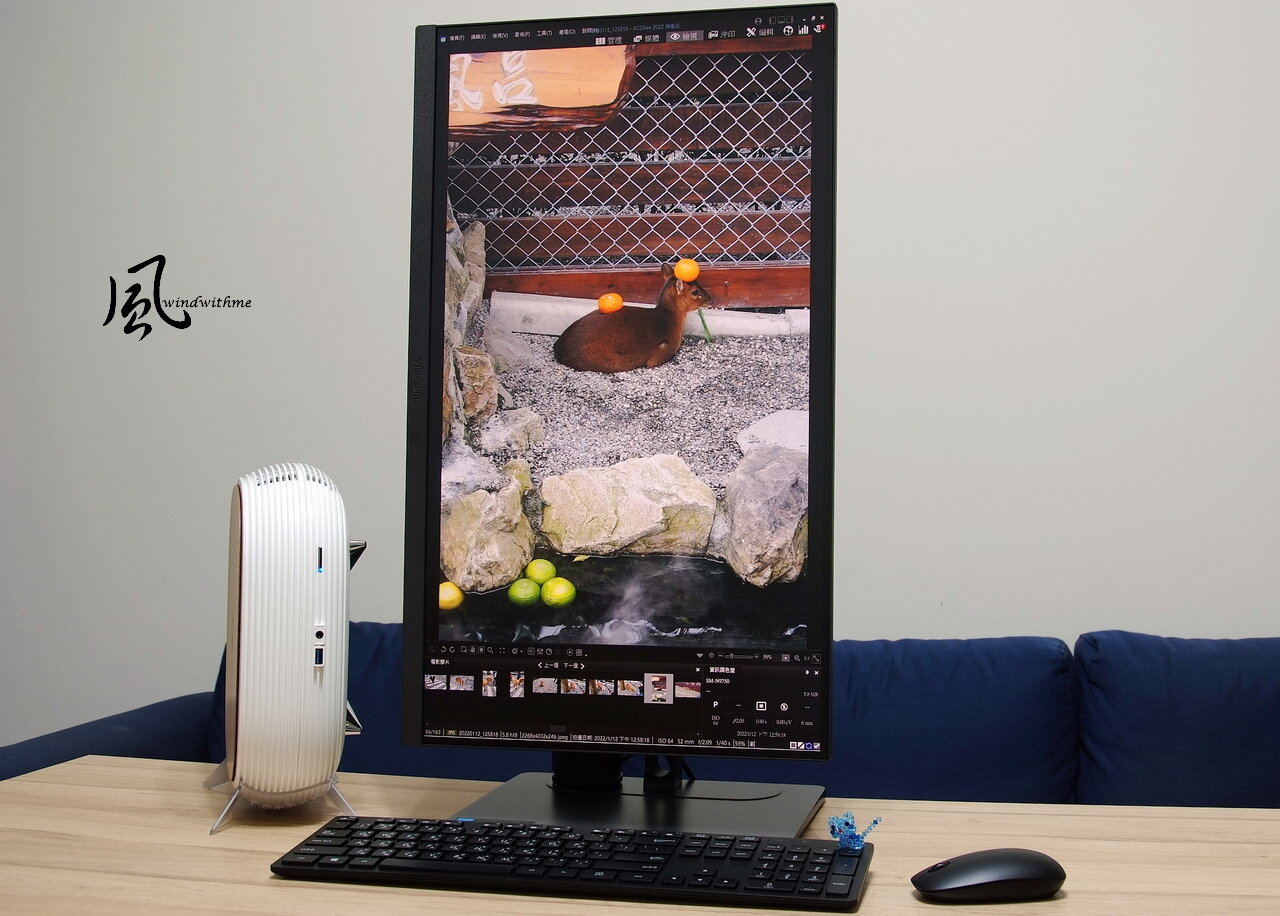
The following ports appear on the back, from left to right: power input, HDMI 2.0, DisplayPort input, USB-C (upstream 90W), DisplayPort output (for daisy chaining), RJ45 Ethernet (1,000Mbps), USB-A 3.2 x3 (downstream).https://i.imgur.com/nXav8og.jpeg When it comes to ease of use, both the stand and the base are crucially important in a high-end monitor. The VG2757V-2K stand provides multiple options for adjustment, and the base features a rotating design not often seen in this class of monitors. The stand's silver coating gives it a high-tech look, with a handle-like grip at the top and holes at the bottom for gathering and organizing cables, ensuring a neat and tidy desktop. The stand and base have a combined weight of 2.5kg, and the metal feels quite weighty to pick up. With the monitor installed the total weight is 8kg, lending a high degree of stability both in normal use and while making adjustments. The base supports horizontal rotation of up to 120° to both the left and right. A USB-C port on the left side of the monitor allows for data transfer and charging up to 15W, alongside a 3.5mm audio output, allowing for easy and direct connections with smartphones and headphones. The stand's height can be adjusted by 110mm. This photo shows the lowest possible height. In addition, it can be tilted up to 40° upwards and 5° downwards. The screen can be rotated 90° clockwise or counterclockwise, and supports vertical display. When rotated to the vertical position, the distance between the screen and the base is about 3.3cm when raised to its highest point. This makes it suitable for office meeting reports, portrait photo and video editing, or even for entertainment such as reading comics. Having used a handful of high-end monitors priced above 10,000 NTD, I've found that with some models the stand cannot be disassembled, and vertical tilts are the only adjustments that can be made. By comparison, a while ago I was using high-end monitors in the 20,000 to 40,000 NTD range which featured multifunctional stand designs similar to those found here. The VG2757V-2K is highly adjustable, with a wide range of adjustments available which make it highly flexible in workplace environments with space limitations. The bespoke vDisplay Manager software offers several key features as shown on the left, organized into Productivity, Eye Care, Video Conference, Basic, and Advanced tabs. The Productivity page offers Screen Pivot options for rotating the screen by 90° clockwise or anticlockwise, as well as a reset option. The Screen Split tab offers six different presets for screen splitting and customization, while Frame Customization sets the color and thickness of the frame. The third tab is AutoLaunch, which captures and stores specific application windows so that they automatically launch the next time vDisplayManager is reopened, allowing you to continue from where you left off. The Eye Care page offers options for adjusting the Blue Light Filter, Smart Blacklight, and Color Filter. The Smart Backlight allows you to adjust brightness and contrast for different times of the day using three settings: Energy, Focus, and Relax. The Color Filter feature is designed for users with color vision impairments, helping them to better distinguish between colors and see details on screen with greater clarity. This was originally one of the standout features of the app, and is now primarily supported by the VP and VG series of monitors. The company website offers a complete list of supported models. When the Webcam function is enabled, a window similar to the Windows Camera interface will pop up, offering photo-taking functions and a 1080p option. In addition, QR codes can be scanned, and passport photos can be taken in three different sizes. Brightness, contrast, and sharpness can all be adjusted, and filters such as Beauty, Lomo, and Cartoon can be applied. Images can also be rotated by 90° clockwise or anticlockwise, or flipped horizontally or vertically. The LED fill light tab offers three settings for color warmth, and low, medium, and high brightness settings.
-
The extent and range of angles to which the stand and webcam can be adjusted are clearly shown in this video, along with a demonstration of the speaker audio: As technology advances and develops, the different varieties of communication software now available are growing more and more diverse. What's more, the shift towards working from home and attending classes remotely in the wake of the pandemic has made electronics with videoconferencing capabilities ever more crucial, and desktop monitors with built-in cameras are well-placed to meet this growing demand. ViewSonic have been in the monitor market for a long time, with products broadly divided into value, office, gaming, and creative ranges. The VG2757V-2K is one of their latest offerings: a high-end monitor designed specifically for work and office environments. Let's start by looking at the VG2757V-2K's display. The screen is frameless on the left, right, and topmost sides, giving it a straightforward and enlarged appearance. The 27-inch IPS panel has an anti-glare 3H hard coating and 2560x1440 resolution, commonly known as 2K or Quad HD, and a viewing angle of up to 178 degrees. It has a 100Hz refresh rate, 8-bit color, 5ms response time, and 350cd/m² brightness, and comes equipped with Eye ProTech+ anti-blue light and flicker-free technology, which effectively reduces eye strain during extended periods of use. It has a static contrast ratio of 1,300:1 (with a dynamic contrast ratio of 80M:1), and 100% sRGB color coverage (108% size/100% coverage). Beneath the panel are two 5W speakers. On the right are touch buttons for operating the OSD, which are something of a rarity in monitor designs today. The webcam boasts a 5-megapixel lens that pops up when pressed and can be hidden away for privacy when not in use. The white areas to the left and right of the lens are LED fill lights that illuminate the face and can be adjusted for color temperature and brightness. The lens supports Windows Hello and is Zoom-certified. The camera lens can be tilted up to 5 degrees up or down: in this picture it's tilting 5 degrees upwards. It's not a huge adjustment, but it does make a noticeable difference in practice. Accessories include a 3-pin power plug, USB Type-C to Type-C cable, USB Type-A to Type-C cable, DisplayPort or HDMI cable (depending on region), and a quick start manual. The monitor comes with five years' full warranty and a one-year dead pixel guarantee within the Taiwan region. The box is made of recyclable cardboard, emphasizing environmental friendliness and reducing plastic waste, while the monochromatic print minimizes pollution from dyes. Set-up and installation is easy thanks to the internal design of the box, which allows the stand to be assembled without the need for tools. The ViewSonic logo appears on the back of the VG2757V-2K, while the words VG COLLECTION appear on the top and lower right of the stand. When the stand is not attached, 100 x 100mm holes can be used for convenient VESA wall mountings.
-
To summarize the features of the ColorPro VP16-OLED: it uses an OLED panel that supports 1.07 billion colors. It has an integrated stand design, provides rich OSD options, is pre-calibrated at the factory, and is Pantone Validated with Delta E < 2 for accurate colors. It supports 100% DCI-P3 and sRGB wide color gamut, delivering precise and professional color levels, pure black colors, and a halo-free visual experience. The magnetic shading hood, which also serves as a protective cover, is highly practical. In terms of connectivity, the device has a built-in Micro HDMI and two Type-C interfaces, with the Type-C supporting 40W reverse charging. Additionally, it offers a comprehensive 5-year warranty service. I remember passing by the TV display section in large stores multiple times, where a whole row of large OLED TV screens always left a deep impression with their stunning image quality. During the period of using the VP16-OLED portable monitor, I experienced its meticulous design and versatile applications. Designed specifically for color accuracy, the ColorPro VP16-OLED not only provides excellent color performance but also offers great flexibility and convenience for outdoor shooting and creation, along with good visual comfort. For image creators who frequently work outdoors and need a high-standard color-accurate monitor that is both multifunctional and portable, the ViewSonic VP16-OLED is one of the few options on the market that meets all these criteria and is definitely worth considering.
-
In practical use, a DSLR (Digital Single Lens Reflex Camera) can be connected to the monitor via Type-C or Micro HDMI, synchronizing the viewfinder to the monitor. For outdoor use, a power bank can supply power to the VP16-OLED. With my many years of experience shooting with DSLR cameras, one of the most inconvenient aspects of outdoor shooting is relying on the small LCD screen to preview shots. This makes it difficult to accurately evaluate brightness, color, and focus in real-time, often forcing me to wait until I return to my computer to check the content thoroughly. If the results are unsatisfactory, I may need to reshoot the scene, which is time-consuming. However, using the VP16-OLED, you can immediately check the shooting results on-site, which is incredibly convenient and saves a lot of time. Additionally, you can use the shading hood whenever needed to reduce the interference of external light. When the shading hood is removed, you can clearly see that there is much more ambient light present on top of the screen compared to the previous photo. When connecting to a laptop or phone via USB Type-C, the device must output at least 10W. If it doesn’t, you’ll need a power adapter for the VP16-OLED. The business laptop shown in this photo can power the VP16-OLED, allowing the monitor to reach its maximum brightness of 100. Using dual screens may slightly increase battery consumption, but under normal brightness settings, it’s not very power-intensive. With ECO mode technology, the VP16-OLED's power consumption drops to just 6W. When editing photos on the go, the VP16-OLED can be used in portrait mode, making it more convenient than a laptop screen and allowing for complete display of the photos. This is especially helpful in the afternoon when indoor lighting is mainly influenced by external sunlight. In the same scene, when the sun goes down and the light source changes to a dim indoor yellow light bulb, the VP16-OLED, which is Pantone Validated and has a Delta E< 2, ensures reliable color accuracy. Additionally, the VP16-OLED is perfectly compatible with Mac devices, offering USB-C for audio and video data transfer, fast charging, and support for the 100% DCI-P3 color gamut, similar to the Apple Retina display. Connecting the VP16-OLED to a phone is a very convenient option, letting you mirror phone content to a larger screen. With common screen mirroring functions, you can easily view photos, videos, and web pages. In practical use, I found that if you use a phone that supports DeX (Desktop eXperience) functionality, the VP16-OLED becomes even more convenient. Its screen can transform into a tablet or PC interface, while the connected phone screen functions as a touchpad, providing users with a richer operational experience. When using the phone as the power source, the default brightness is set to 15%. The OLED panel’s high brightness makes this sufficient for indoor use. However, the phone's smaller battery capacity means it will drain faster than when connected to a laptop. If you use a power adapter, the Type-C interface on the monitor can simultaneously charge your laptop or phone. Finally, compared to the IPS(In-Plane Switching) panel laptop on hand, the OLED panel has become the preferred choice for high-end displays in recent years, boasting deeper contrast, higher brightness, a wider color range, and faster response times. A few years ago, a friend mentioned getting a high-end OLED TV and being very impressed with its black-level performance. I have a similar feeling after using the VP16-OLED. For instance, this Spider-Man photo was taken at the entrance of a cinema and the VP16-OLED performs better than the laptop in terms of color accuracy and black-level performance. While the photos of the screen taken with a camera have been captured to be as close as possible to what the naked eye sees, slight differences in appearance may occur on each of your monitors. Adjusting both screens to similar brightness levels and using the Windows taskbar as a standard for comparison, the lantern festival photo appears slightly brighter on the OLED screen. If the laptop screen is set to its highest brightness level, the VP16-OLED only needs to be set to 55-60% brightness to match the laptop's brightness level. OLED, an organic light-emitting diode display technology, features pixels with individual dimming areas. This allows the area where images are displayed to illuminate while other areas remain completely black, eliminating blurry light effects. In this photo taken at a past lantern festival, you can clearly see the higher saturation of the OLED panel. The absence of any halo effect makes the picture appear more outstanding. When viewed in person, the naked eye can easily perceive these differences, especially the deeper black levels within the photo.
-
The third tilt option allows users to choose from several viewing angles. By adjusting the stand, the monitor can be switched to a vertical mode. When rotating the screen, the display orientation needs to be manually changed in the system settings. The primary function of the magnetic shading hood is to prevent ambient light from interfering with the screen's colors. Additionally, there is a tripod mounting hole at the bottom, making it more convenient and flexible to use. The shading hood can also serve as a protective cover for the screen surface when not in use. OSD Menu Screen Capture: When capturing the screen with a digital camera, moiré patterns may appear; however, the screen appears normal to the naked eye. The Startup Menu includes options for the Main Menu, Color Mode, ViewMode, Brightness, Input, and Volume. The Main Menu starts with the input switching function. Next is the Color Mode page, which offers DCI-P3, sRGB, REC709, DICOM-SIM, and User settings. Within the DCI-P3 settings, you can adjust Brightness, Color Temperature, Gamma, Sharpness, Aspect Ratio, and Recall. The ViewMode offers modes such as CAD/CAM, Video Edit, Animation, Photographer, FPS1, FPS2, RTS, and MOBA. These modes can be selected based on your specific environment. Internal details can be fine-tuned as needed. For example, the Video Editing mode has Ultra Clear, Advanced-Sharpness, and Advanced-Gamma options. The Setup Menu options include Language Select, Resolution Notice, Information, OSD Timeout, OSD Background, OSD Pivot, Power Indicator, Auto Power Off, Sleep, ECO Mode, Overscan, Burn-in Eraser, DDC/CI, Rename, and All Recall. ECO mode on the VP16-OLED offers four settings—Standard, Optimize, Conserve, and Energy Saving—along with a status bar for quick insights into the current configuration. Moreover, the burn-in reduction feature is especially useful. As with other ColorPro desktop monitors, the VP16-OLED comes with a rich set of OSD options, giving users greater control over color adjustments.
-
本影片深入介紹了不同的視角和使用演示,我們為製作它付出了很多努力。 請透過此處訂閱和觀看來支持我們: VP16-OLED顯示器採用三面窄邊框設計,並使用OLED面板。 它的可視區域為 15.6 英寸,具有堅硬的防眩光塗層和 1920 x 1080 的分辨率。 OLED 面板採用自發光技術,提供出色的黑色水平和色彩準確度,使黑色更暗更深。 它支援 10.7 億種色彩和 10 位(8 位 + FRC)色深,可提供創作者所期望的精確畫質。 面板規格包括 100,000:1 對比、1ms 反應時間、400 cd/m² 亮度和 170 度視角。 此外,它還具有減少藍光和無閃爍技術。 該顯示器還覆蓋 100% 的 DCI-P3 和 sRGB 色域,並通過了 Pantone 驗證,Delta E < 2,確保了高色彩精度。 近年來,定位高階市場的旗艦電視、電腦顯示器大多都搭載了OLED面板。 配件包括快速入門指南、磁力多功能遮光罩、15-60W可調電源轉接器、Type-C轉Type-C線、Type-C轉Type-A線、Micro HDMI轉HDMI線。 每台 ColorPro 顯示器在出廠前都經過色彩準確度的預先校準,並提供 DCI-P3、sRGB 和 Rec.709 的報告。 使用者可以在線上下載這些校準報告,確保開箱即用的精確色彩準確度。 VP16-OLED淨重0.98公斤。附支架測試時,重量約961公克。 不含支架的顯示器尺寸為 359 x 227 x 6 毫米。 當支架伸展時,尺寸和可調範圍約為 359 x 227-314 x 19 毫米。 後殼和支架側面帶有 ColorPro 銘牌,以提高識別並增加聲望。 保固內容包括五年免費人工和零件,以及台灣全境的免費取貨和送貨服務。 在此期間,客戶可以享受同型號或同等型號的更換服務。 如果顯示器在保固期內需要維修,將提供相同型號或規格的替代顯示器。 此外,針對亮點缺陷還提供一年保固。 支架底部的控制面板有四個按鈕用於OSD(螢幕顯示)設定。 控制面板旁邊是電源開關。 右側 I/O 連接包括兩個 USB 3.2 Type C 連接埠(支援資料傳輸、DisplayPort 視訊輸入和 40W 電源傳輸)、一個 3.5mm 音訊輸出和一個 Micro HDMI 1.4 輸入。 左側兩端配有1瓦揚聲器開孔。 [/圖片] 支架採用一體成型支架設計,具有三種傾斜選項,可輕鬆調整角度和高度,實現更靈活的螢幕定位。 支架採用雙鉸鏈支架構成。 第一個傾斜選項是符合人體工學標準的站立支撐,讓螢幕向前/向後傾斜最多 -60º/ 20º。 第二種傾斜選項允許將支架調整為三角形折疊支架。
-
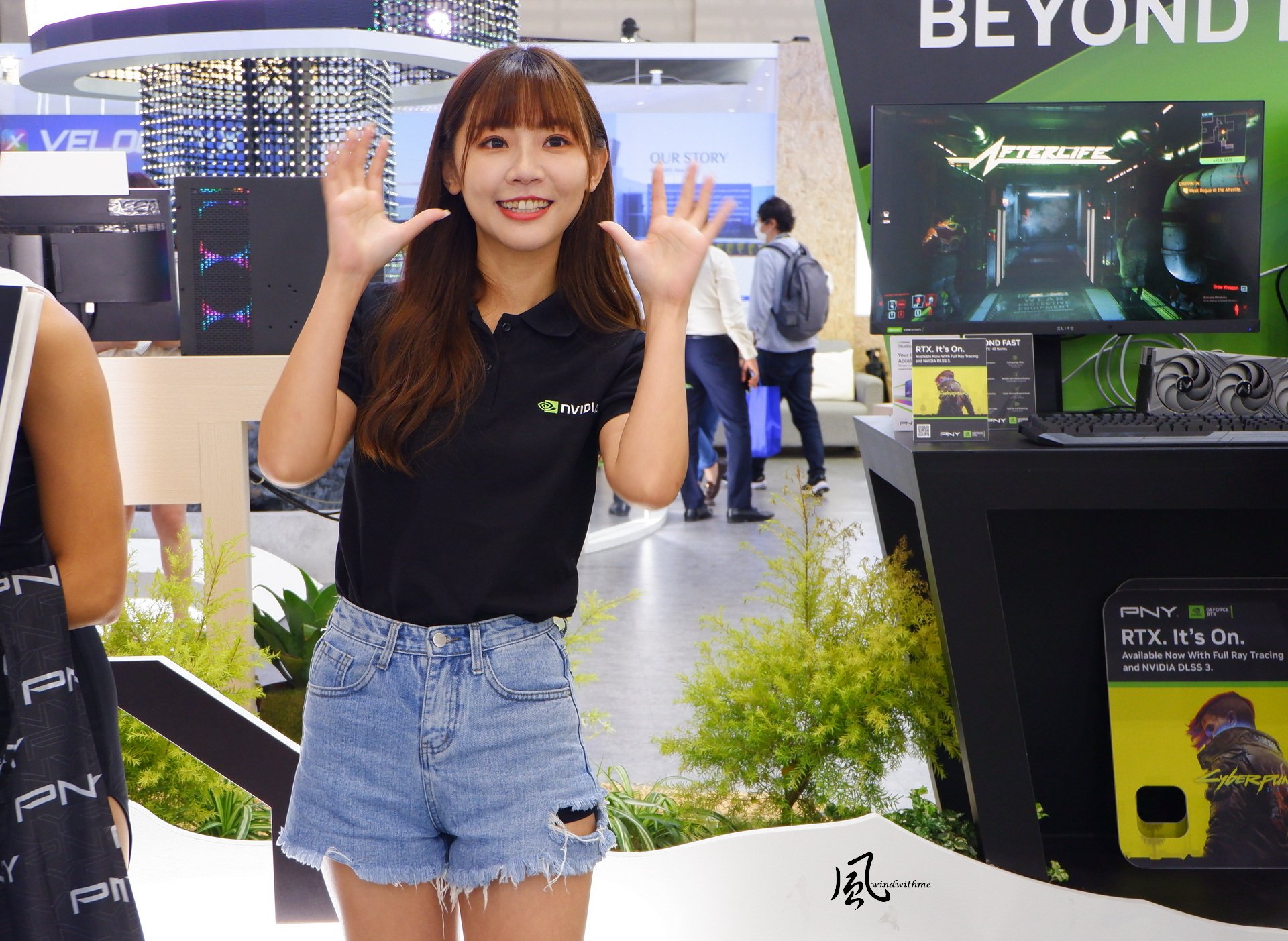
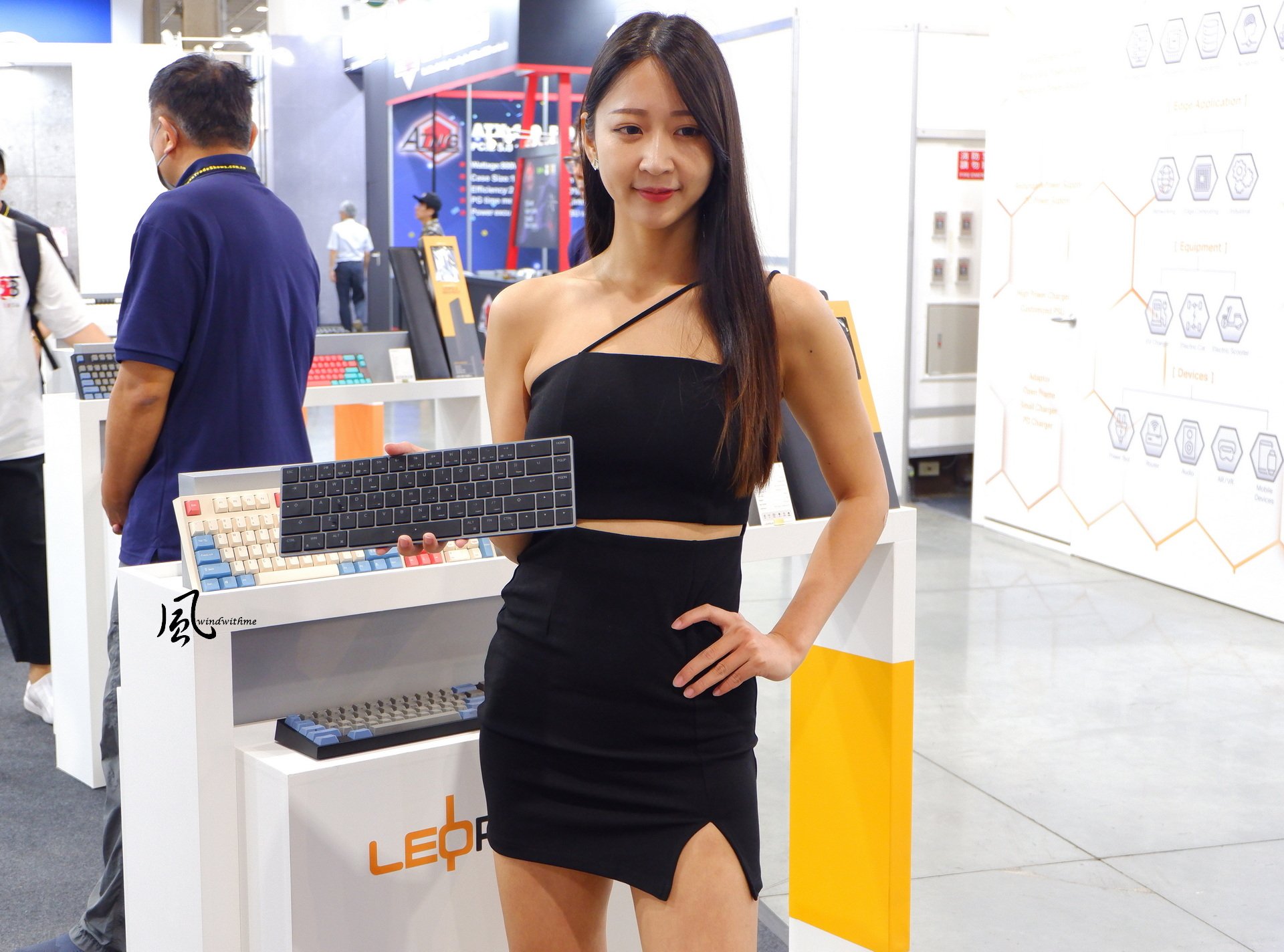
Perhaps because of the more exciting evolution of new products in the computer field in the past two years, and the hot topics related to AI, many brands did not invite as many ShowGirls to embellish the venue as before. Every time I attend COMPUTEX, I share photos of the Show Girls at the exhibition hall. So, without further ado, here are a few. Please scroll down with your mouse. In addition, this year’s Youtube videos are highly recommended to be watched. Adding dynamically shot clips will make them much more vivid than photos. This year's COMPUTEX is probably the most bustling I've ever attended. The three major tech giants are standing alongside their partner companies, launching signature new products that have sparked another wave of excitement at the venue. Additionally, there are many new products being exhibited for the first time or set to be released in the latter half of the year. In addition, many brands are showcasing a variety of AI server models, extending the trend from last year to now. At the venue, numerous computers are seen utilizing AI software in conjunction with hardware, including applications in healthcare and photo selection, among others. COMPUTEX 2024 is showcasing AI as a subtitle for the first time, highlighting its immense market potential with high creativity and application scope for the future. We look forward to seeing even more efficient and advanced AI technology applications next year. Here's what windwithme saw in the form of photos and text during the two-day visit to COMPUTEX. A video capturing the dynamic scenes at the exhibition was also produced after spending considerable time filming. If you found it helpful, please consider subscribing to our YouTube channel for support. Your comments and likes continue to be my motivation to move forward.
-
At the Ducky booth, there are keyboards, mice, gaming chairs, PC cases, and more. This new product is a hot-swappable keyboard designed in the pattern of a classic soaring dragon and limited to 999 pieces. The exterior features anodized treatment for minimal fading and a smooth surface. It includes Eastern crystal keycaps with dragon imprints on the ESC and Space keys. The metal backplate adorned with a dragon motif gives the keyboard a substantial weight when picked up. When you take it apart, you can see the purple switches inside. The wireless mouse, OP1w 4k, is introduced with a minimalist design. The wired version is the 8K. In another area, there is a NITRO vertical monitor stand that can installing ultra-wide screens. Paired with a gaming steering wheel and compatible with various generic seats and racing chairs, allowing users to immerse themselves in the game. ThunderX3 exhibited a variety of co-branded gaming chairs. ACER also exhibited Swift Series laptops with Intel Core Ultra Lunar Lake processors. You can see the Intel ARC A750 graphics card in the components area. Cooler Master is showcasing some very unique cases this year, featuring both white and black models at the event. ENERMAX is exhibiting a turtle-shaped PC case. In the past, COMPUTEX has primarily focused on gaming, but this year AI has been the main theme running throughout the entire venue. There are many high-profile AI-related products and applications, although there are still plenty of new products related to gaming as well. Desktop computers are mainly showcasing the next-generation Intel and AMD platforms at COMPUTEX. Currently, only motherboards with new chipsets are on display. The actual performance of the CPU will not be known until it is released in the second half of the year. The new laptop offerings are quite similar as well. AMD has introduced the 300 series named after AI, while Intel's Core Ultra Lunar Lake laptops seem to be closely guarded by various manufacturers. There's anticipation for broader applications with the integration of NPUs.
-
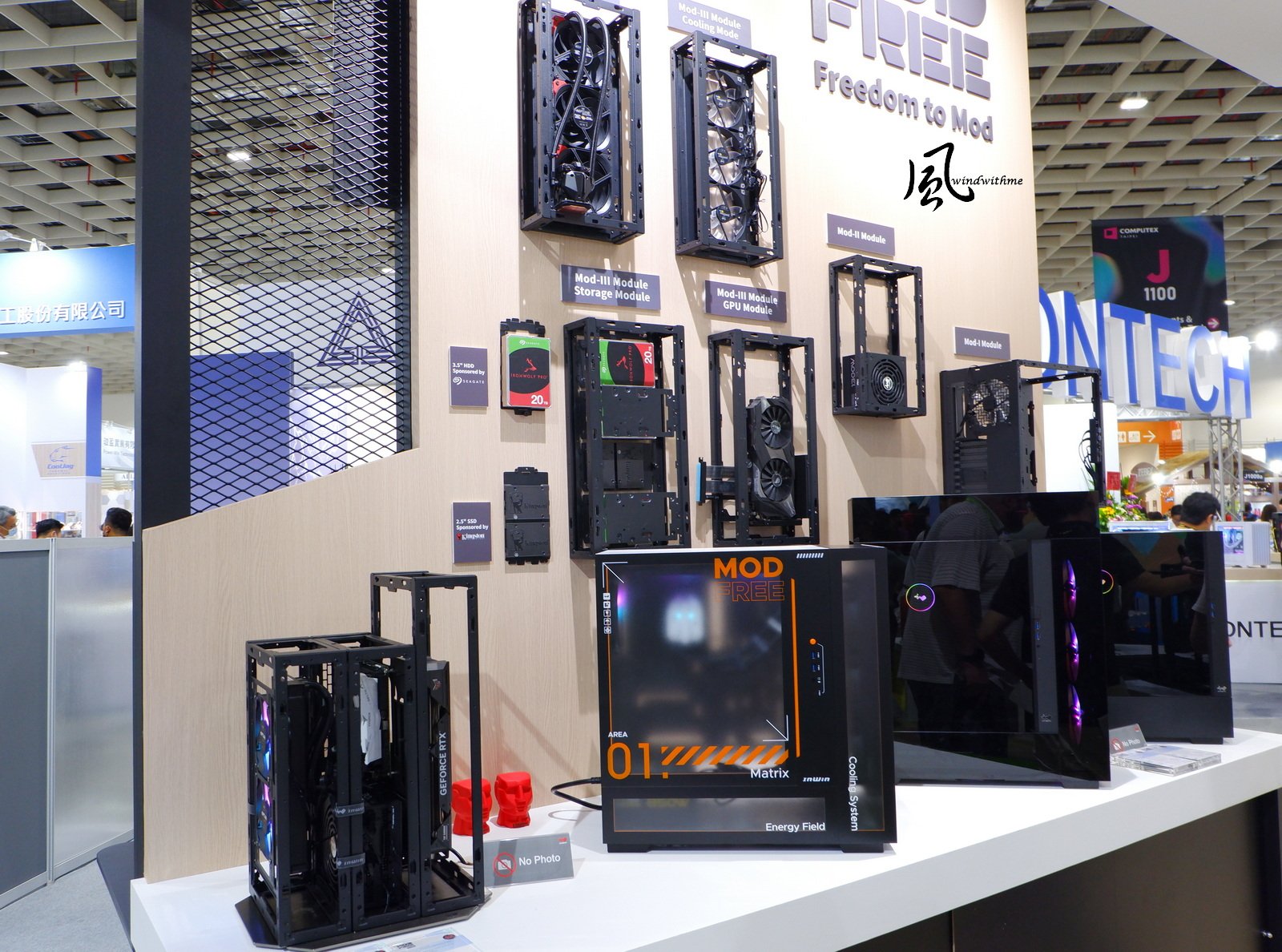
Prestige 13 AI+ Evo is equipped with Intel Core Ultra Lunar Lake processor, 13.3-inch OLED screen, 16:10 resolution 2880x1800, and weighs 990g. There are several dragon-shaped graphics cards created through AI drawing and produced via 3D printing, making them visually striking. Autographed laptops are displayed in the cabinet. ASUS is divided into two major exhibition areas this year, ASUS and ROG. It also displays a variety of laptops equipped with AMD's new generation RYZEN AI 9 HX370. In the photo, it is a white ROG Zephyrus G16 gaming laptop. ROG MAXIMUS motherboard is equipped with Intel's next-generation chipset. TUF GAMING in the ASUS exhibition area is equipped with AMD's next-generation X870 chipset motherboard. This year, InWin uses a space capsule as the design element of the exhibition venue. On the outside, there is an "Infinite" image computer case with the concept of transcending infinite possibilities. The one-piece curved glass case with an electrically opening and closing upper cover makes it easy for users to assemble and supports back-plug-in motherboards. The overall look is quite technological and design-savvy. InWin F3 is on display in black and white versions, with white components inside. As a small workstation case, it can run AI drawing software models. In addition, a personal AI computer composed of the ModFree ecosystem is also on display. There are 6 types of liquid-cooling displays in the display area, and several of them are new products that have just been launched this time. In addition to the MR36, the three new liquid-cooling heads of LR, AR, and DR have significantly increased their volume. Four types of power supplies are on display, including the PII series 2500W ATX 3.1 Platinum power supply for the first time, which is used to meet the high load requirements of multi-graphics AI workstations. The VE series is gold certified and launches high wattage power supply models.
-
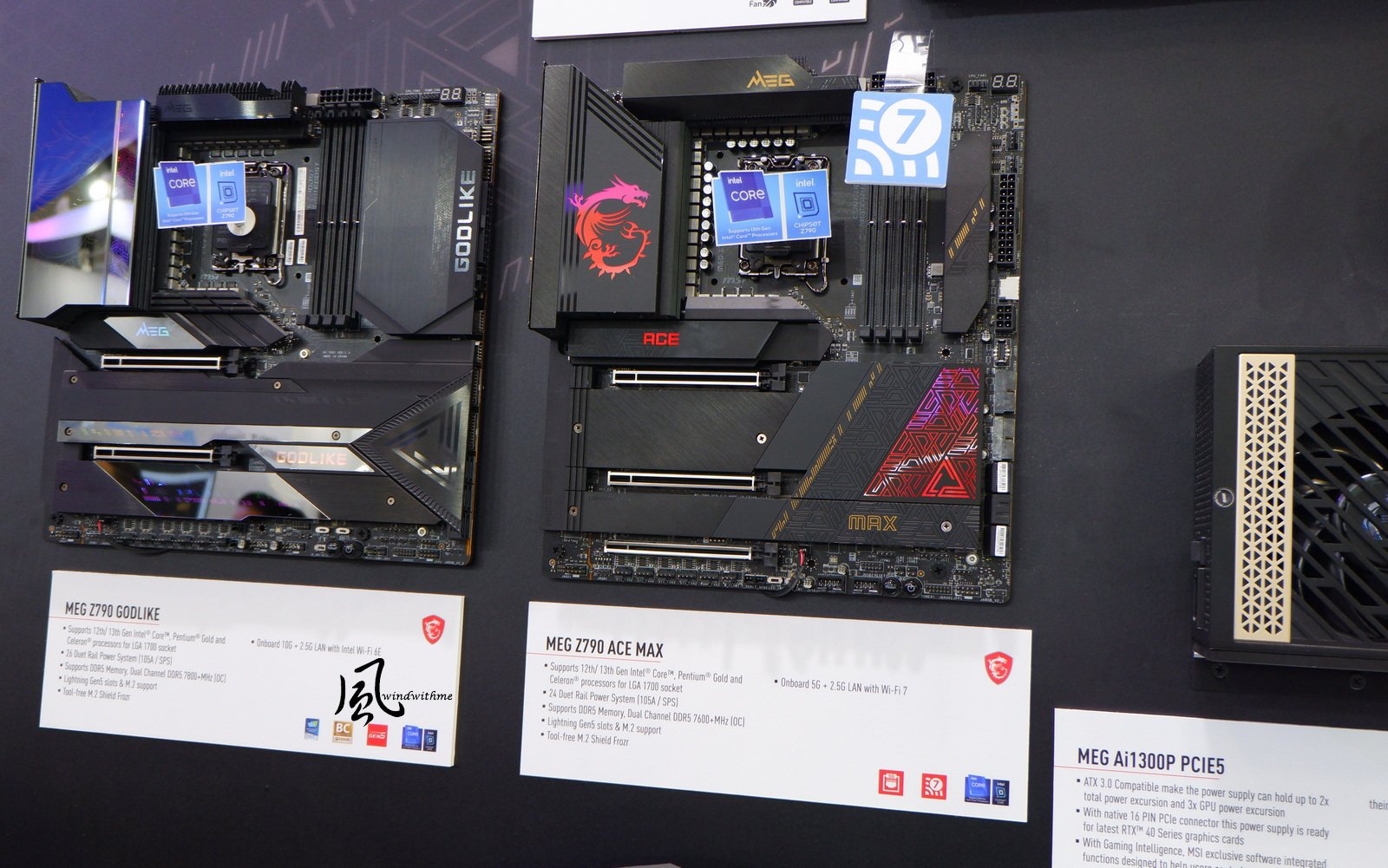
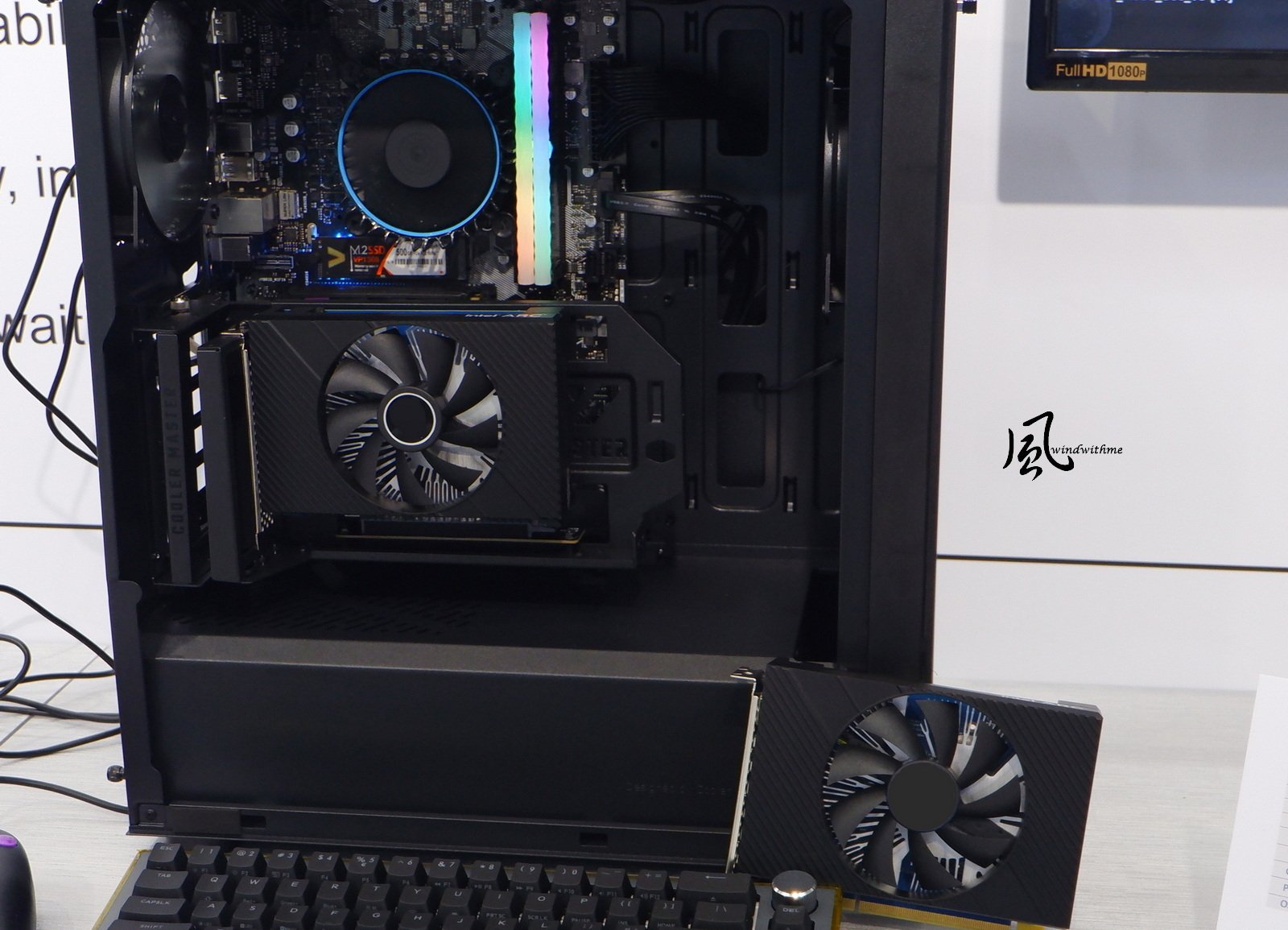
A variety of QD-OLED gaming screens are also on display, including AORUS CO49DQ, MO34WQC2, and AORUS FO32U2P. The photo shows MO34WQC2 curved screen, 240Hz update rate, 0.03ms response time. The AORUS white gaming console has a white screen and a white chassis. On the right is the B650E AORUS STEALTH ICE back-plug motherboard. In addition to the computer case new designs that we called sea view rooms were common last year, this year we also see many configurations with large screens inside. BIOSTAR focuses on motherboards and graphics cards, and has launched a variety of product lines in recent years. The new version of the Valkyrie image machine made by Z790 VALKYRIE is displayed on the periphery. The motherboard wall is composed of Intel and AMD series. The three models in the bottom row are the next generation of new products. AMD new generation X870E VALKYRIE Intel Next Generation Z Series VALKYRIE Another area displays a variety of AI application software powered by Intel platform computer hosts equipped with ARC graphics cards. BIOSTAR exhibited Intel A380 and A750 graphics cards. MSI has become more and more visible in the laptop market in recent years, and its recently launched game consoles are also very topical. Debuting for the first time at the venue is the Claw 8 AI+ 8-inch gaming handheld console, featuring an Intel Core Ultra Lunar Lake processor. Stealth A16 AI+ is equipped with AMD’s latest RYZEN AI 9 HX370.
-
The exhibition videos and article photos each have many different scenes and take a lot of time to produce. Please support by subscribing. https://youtu.be/JuLu6e2B10Q I remember that the first time I visited the COMPUTEX venue was in 2004. In the blink of an eye, it has been more than 20 years. During this period, there have been tremendous changes in technology related to the computer industry. COMPUTEX Taipei has witnessed the evolution of new products over these years. Last year, NVIDIA sparked an AI craze at COMPUTEX, leading to an even greater surge in AI topics this year. Many brands have tried their best to connect their new products with AI. In addition, this year's keynote speeches include three major technology giants, NVIDIA, AMD, and INTEL, who have come to Taiwan one after another, and their lineup and content are richer and more exciting than before. This year, due to a busier schedule post-COMPUTEX, this article is shared later than usual. It includes more photos to enrich the content. Due to time constraints this year, I only attended the Intel KEYNOTE, personally hosted by CEO Pat Gelsinger. The keynote centered around "Bringing AI Everywhere," with a notable increase in visibility for AI-related server products at this year's exhibition. The event emphasized Intel XEON's market advantages. The speech also displayed AI PCs equipped with Intel platforms from major cooperative brands this year. Then we went to Intel Booth, where the main new chips were on display, and the new AI PC laptops were used in many aspects. The DELL XPS series is still a laptop that I really admire. GIGABYTE AORUS 15 Intel exhibited six next-generation motherboards from its cooperative brands. Although the chipset code was not marked, quite a few news online revealed that the model number is Z890...XD Since there are many brands and new products in the Nangang Exhibition Hall, the visiting time and sharing space are limited. The following sharing is for those who are personally interested or have introduced their new products during the visit. First up is GIGABYTE & AORUS. A variety of Intel's next-generation motherboards are on display, all with M.2 and PCIe EZ-Latch Plus quick-detach designs, and the magnetic antenna holes have been changed to more convenient plug-in types to simplify the installation process. The center of the display card above is RTX 4070Ti SUPER AI TOP 16G. Several products in the photo have the signatures of technology giants. Next generation Z series AORUS MASTER and AORUS ELITE WIFI7. The AI TOP area displays the TRX50 AI TOP motherboard, which uses four RTX 4070Ti SUPER AI TOP 16G and is paired with the AI TOP Utility interface on the left to provide a friendly and convenient usage mode.
-
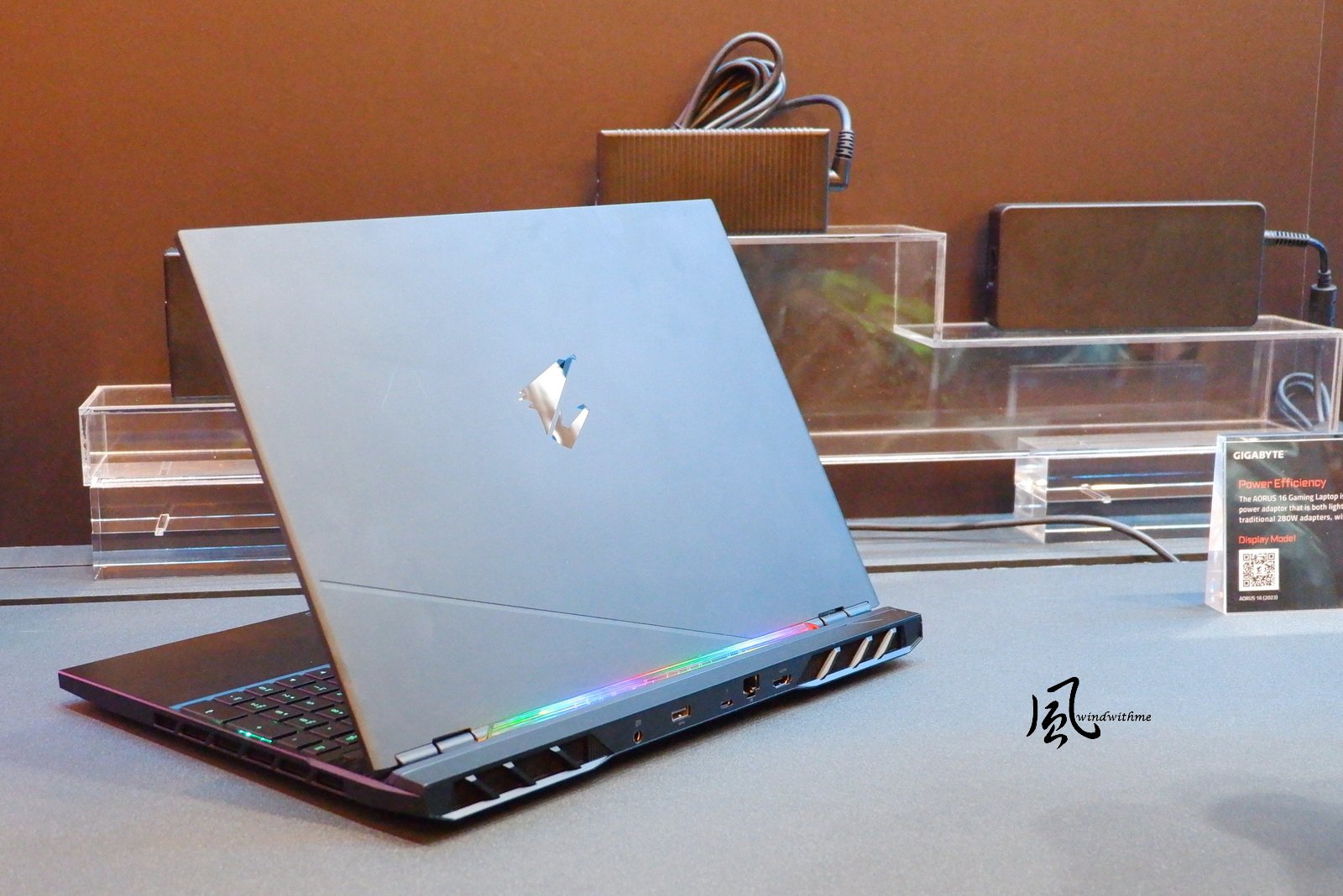
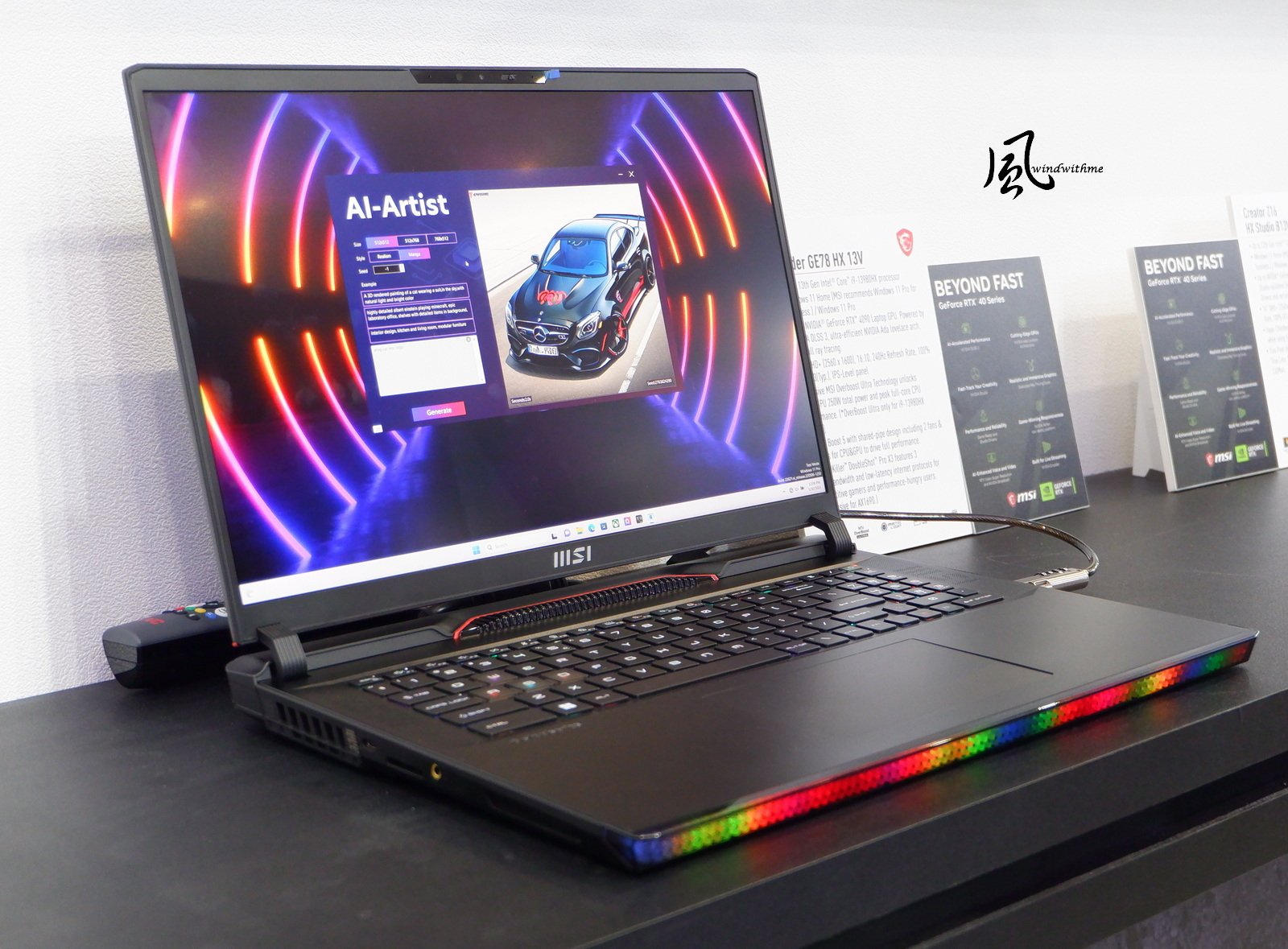
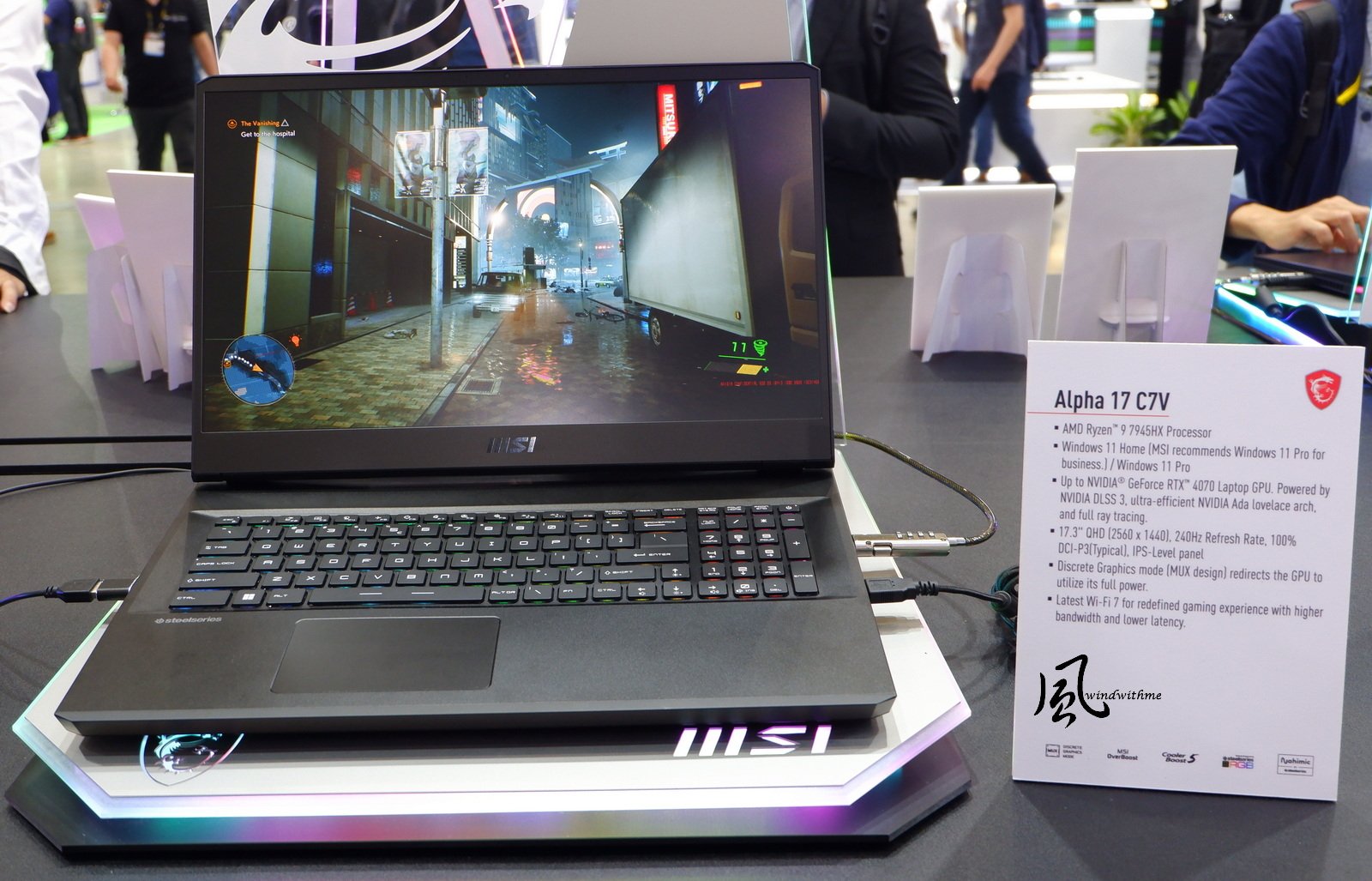
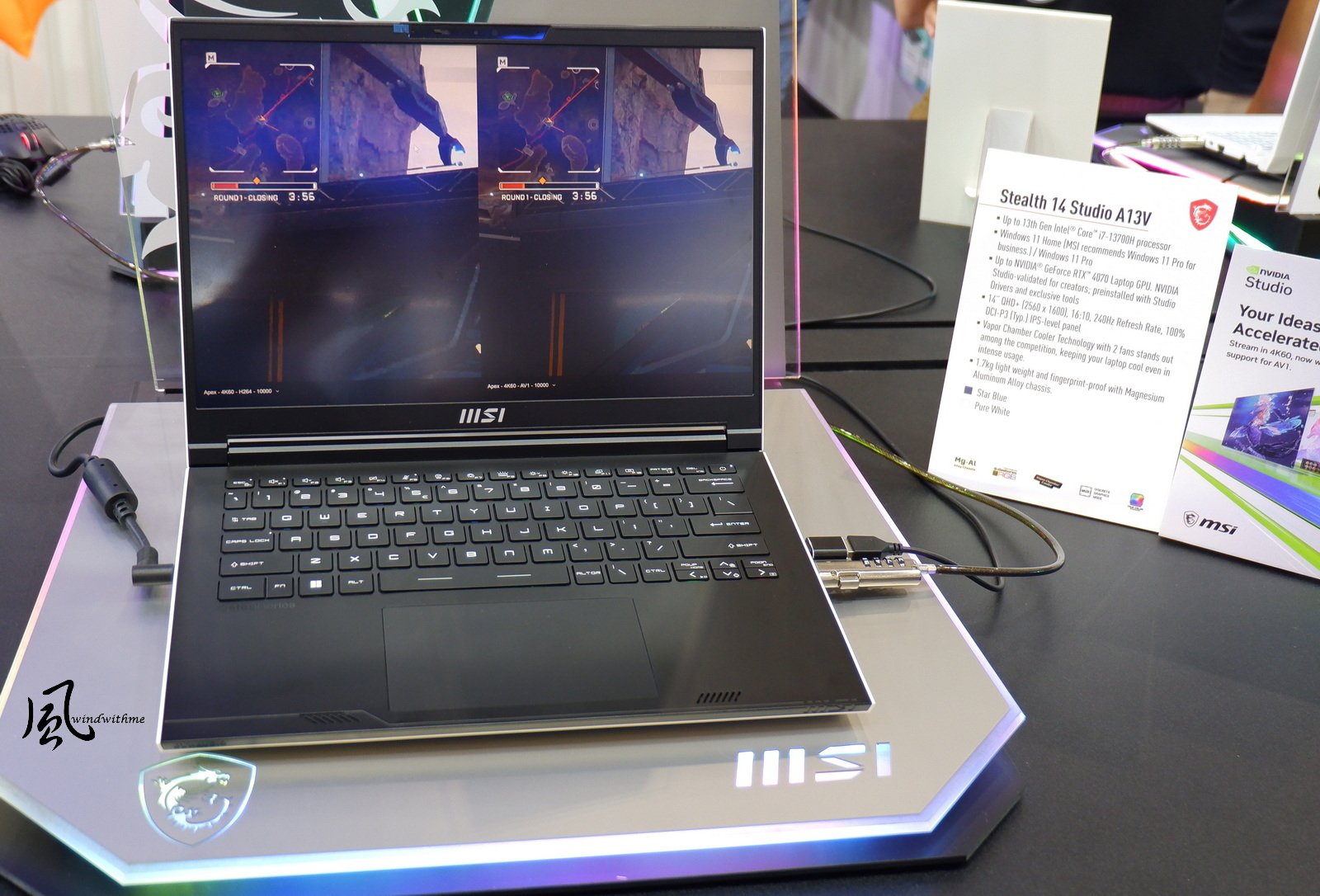
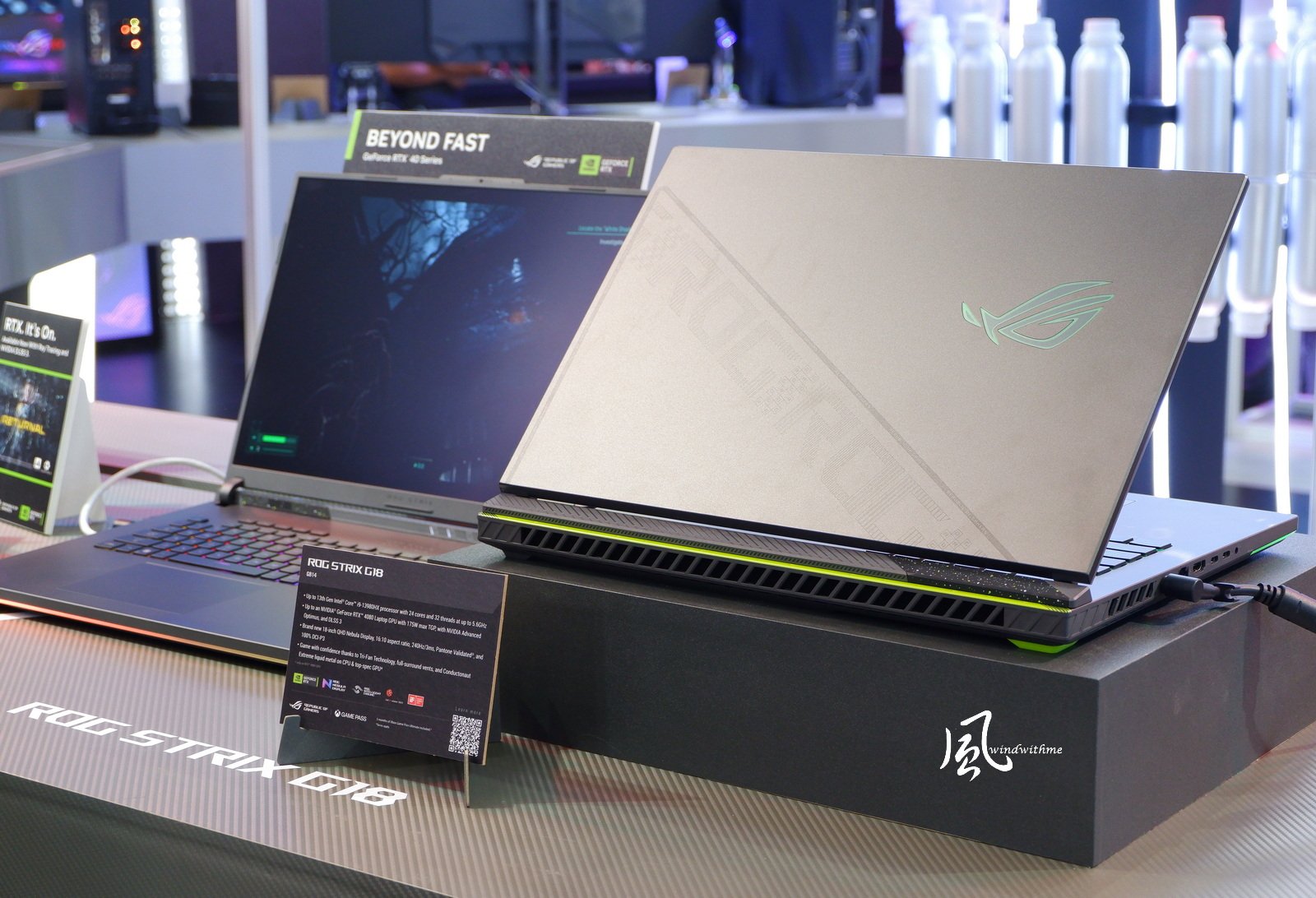
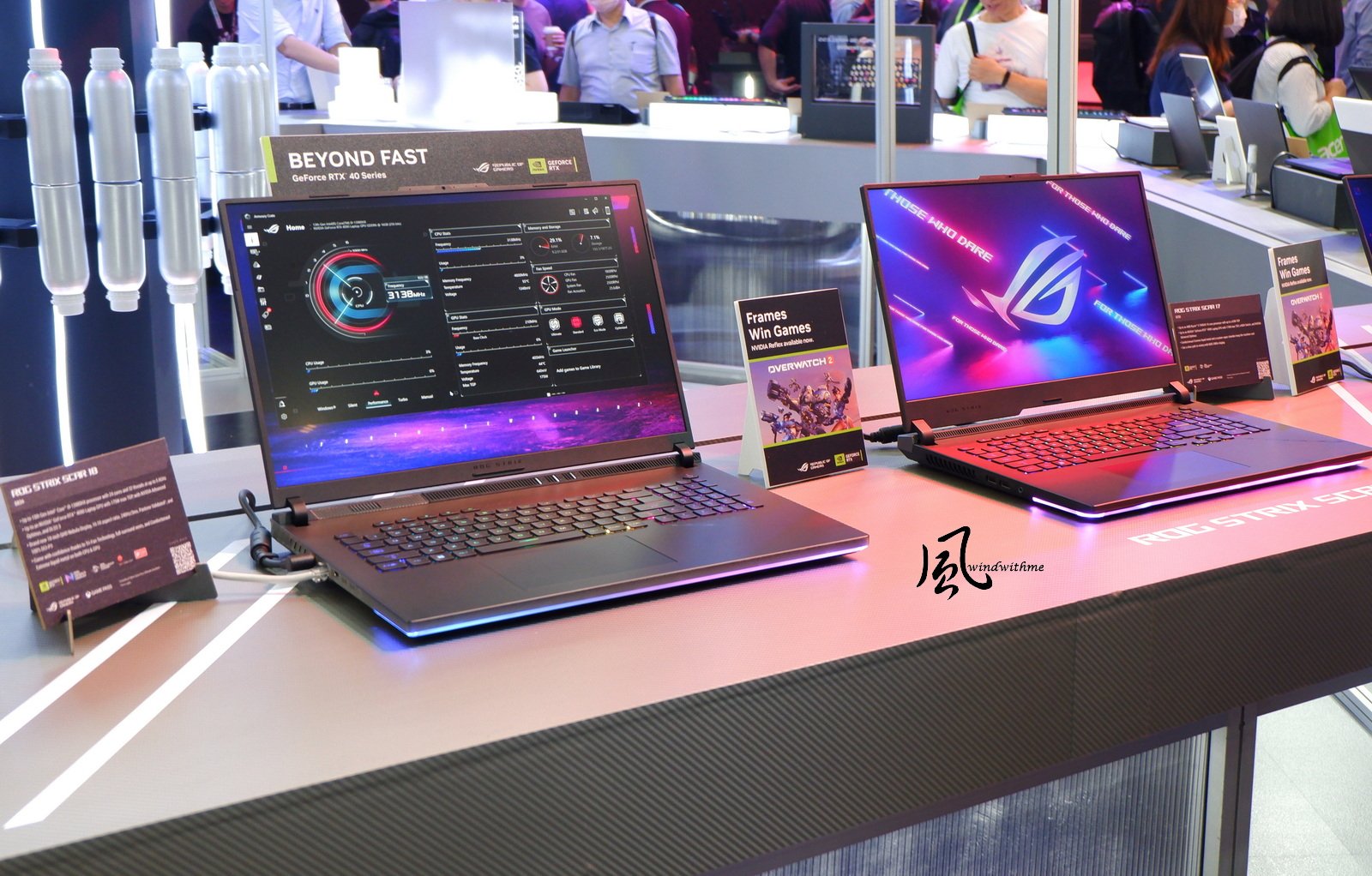
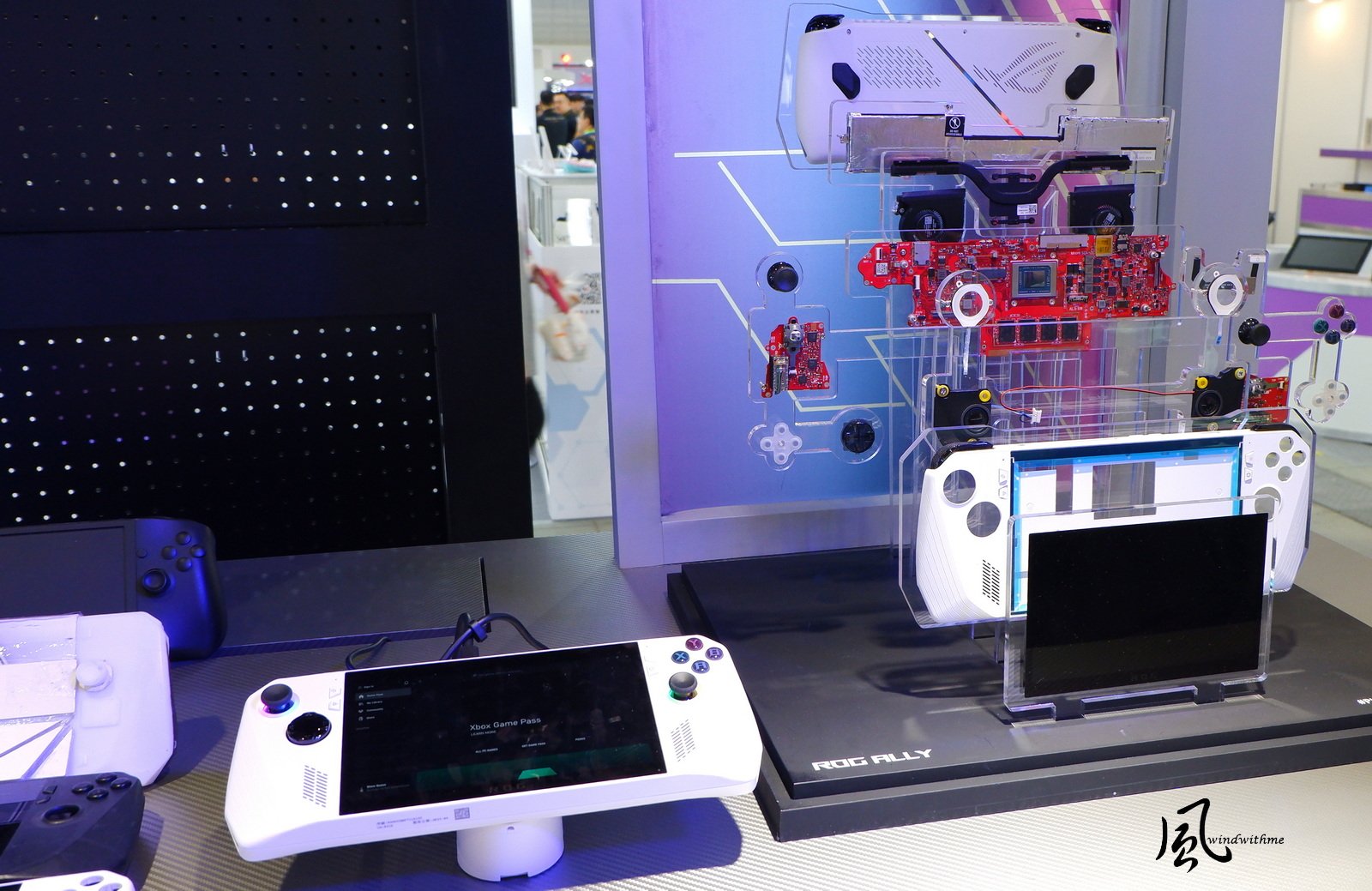
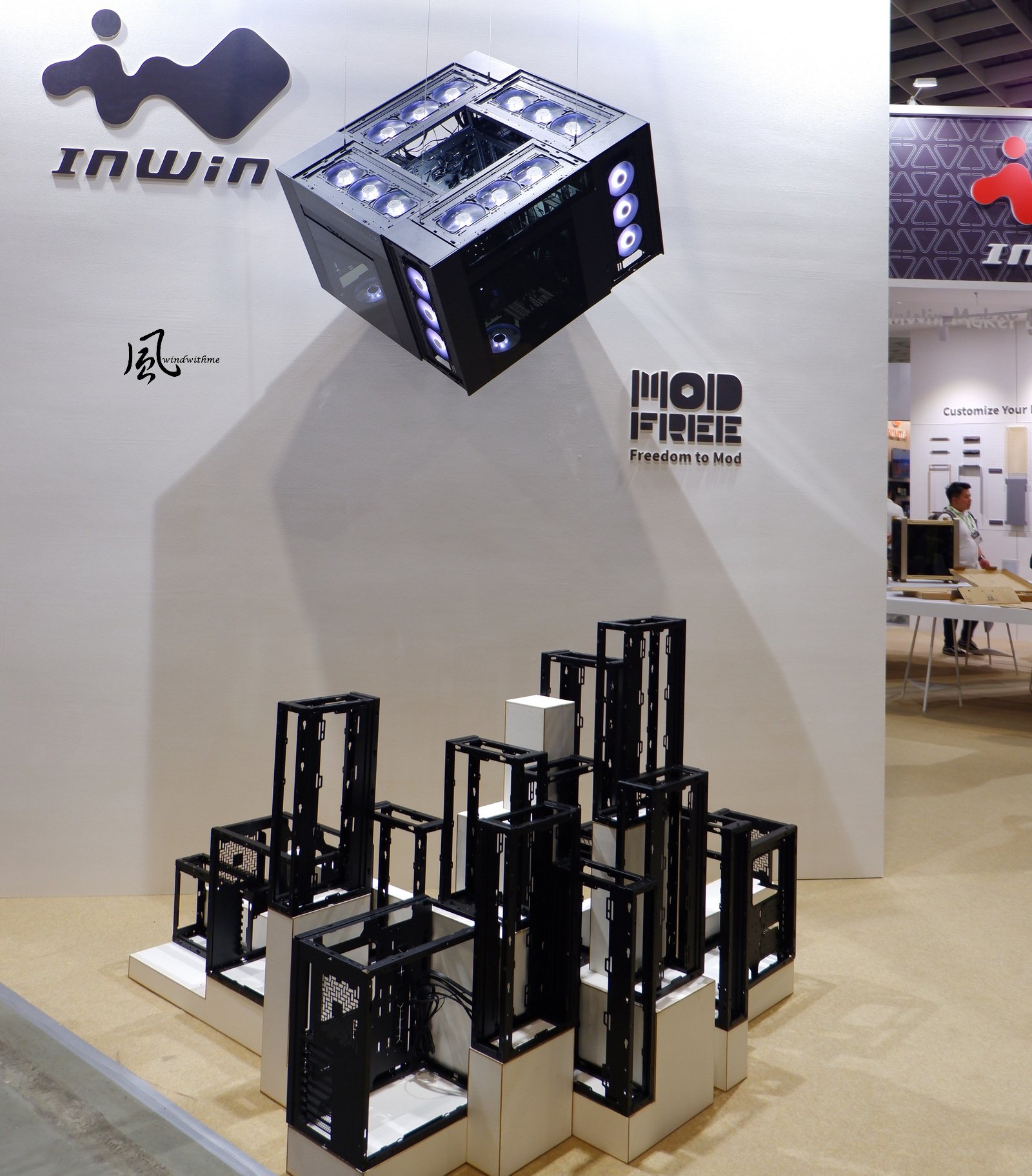
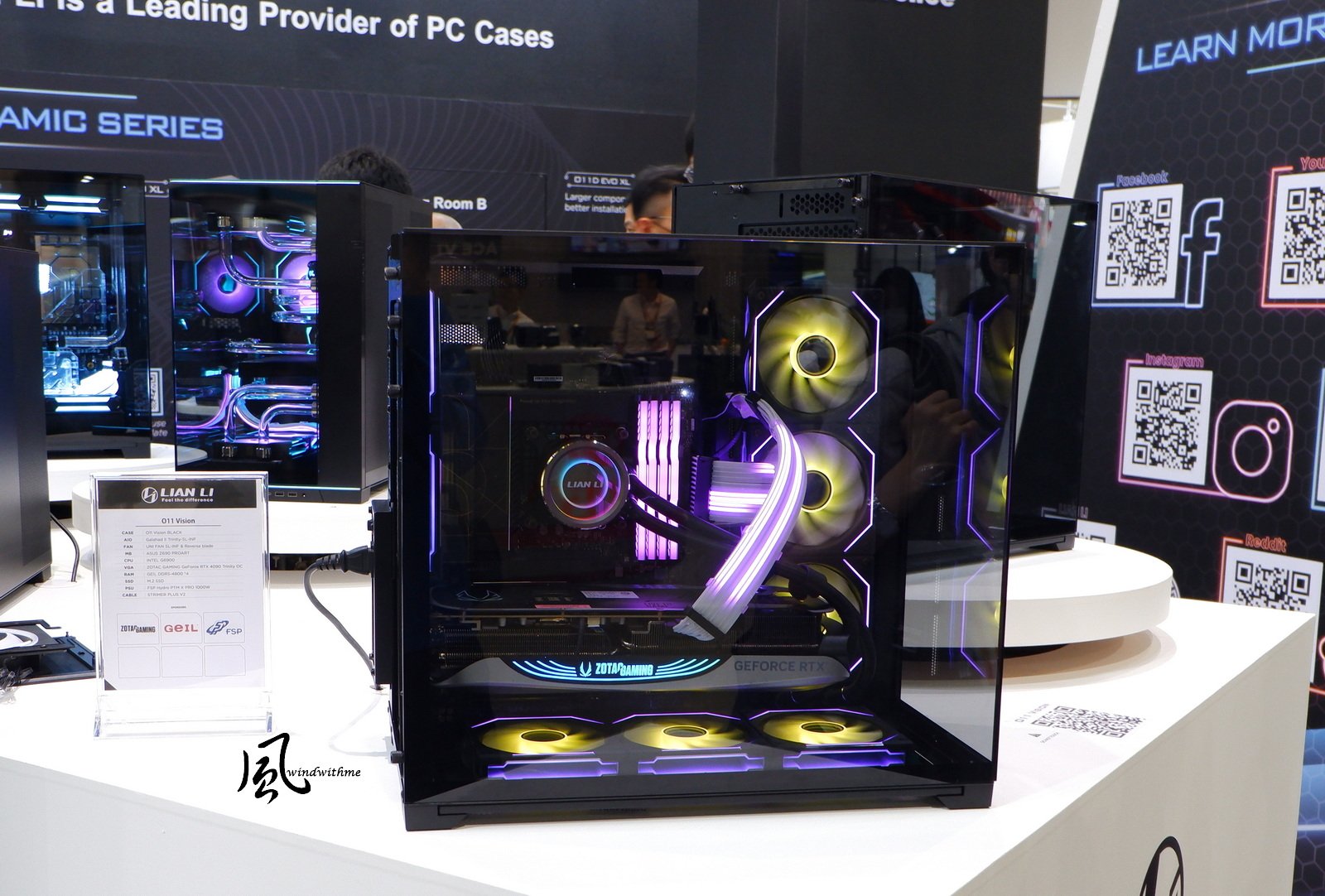
windwithme Computex 2019 New stuff and Show Girls report Computex 2023 video, please support by subscribing to windwithme: https://youtu.be/YAAgbOQXd7E GIAGABYTE & AORUS AORUS 16(2023) Z790 AORUS XTREME X Z790 AORUS MASTER X MSI Raider GE78 HX 13VH Intel Core i9-13950HX & NVIDIA RTX 4090 Laptop Alpha 17 C7V AMD Ryzen 9 7945HX & NVIDIA RTX 4070 Laptop Stealth 14 Studio A13V i7-13700H & RTX 4070 MSI new Z790 WiFi 7 ACE MAX. CARBON MAX. EDGE MAX BIOSTAR VALKYRIE Z790 & X670E SILVER Standard Intel ARC A380 ACER PREDATOR PREDATOR HELIOS i9-13900HX & IPS Mini LED Swift Edge 16 & 16:10 3.2K OLED, AMD 7040 series. PREDATOR ORION 7000 ROG Strix G18 i9-13980HX & RTX 4080。 ROG Strix SCAR 18, i9-13980HX & RTX 4090。 ROG Ally INWIN IBuildiShare & ModFree ModFree POC series. DUBILI series. TR series Cooler Master ORB X Sneaker X Montech KING 95 MOD T-FORCE LIAN LI O11 Vision Show Girls be quiet! She should be a staff. If you’re new here then subscribe our channel to get more new videos, thanks:)

-
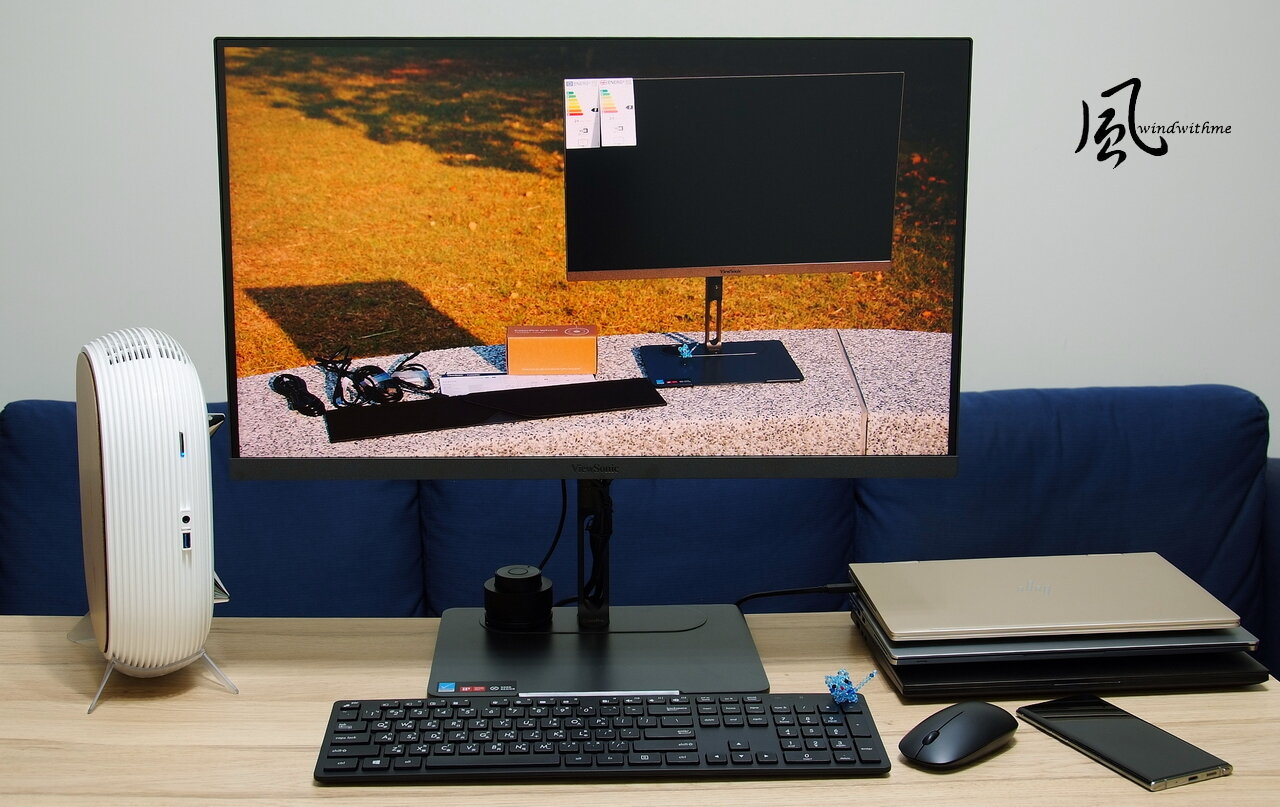
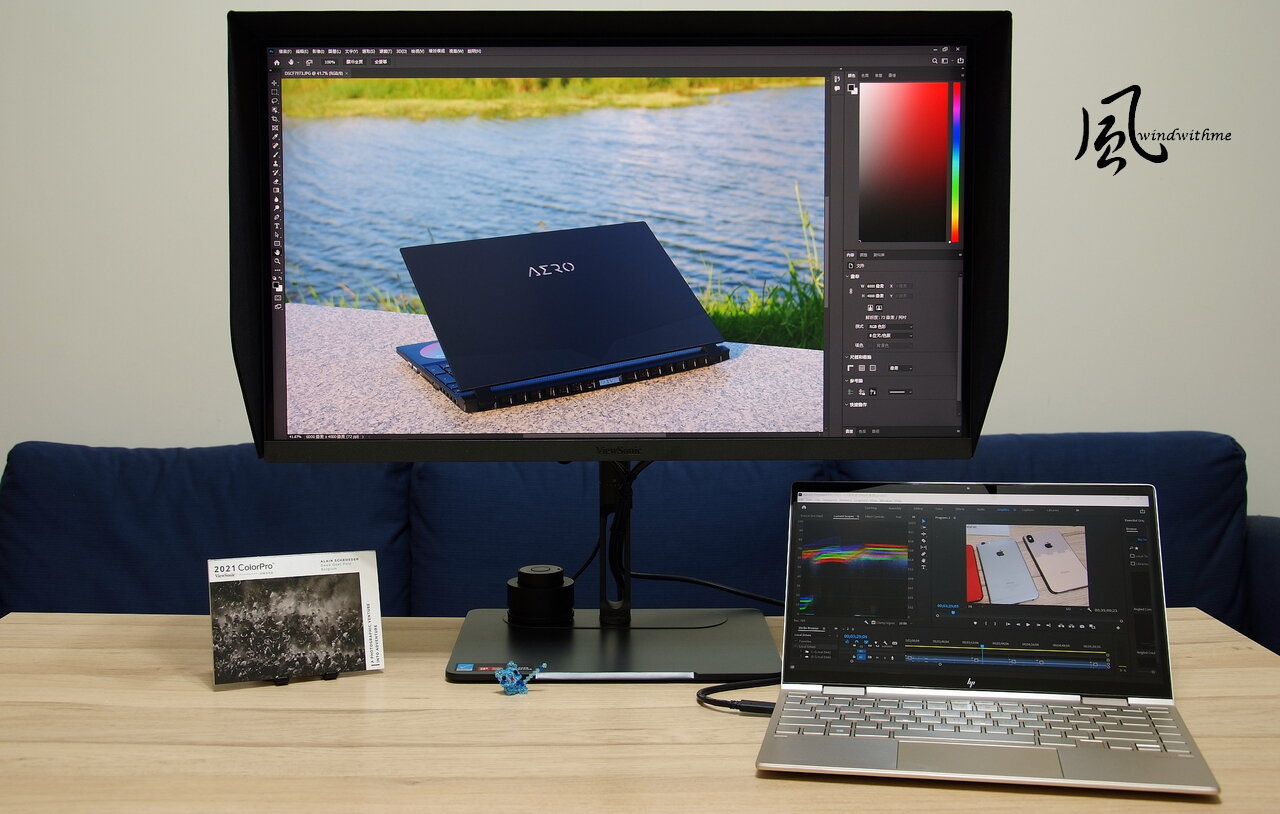
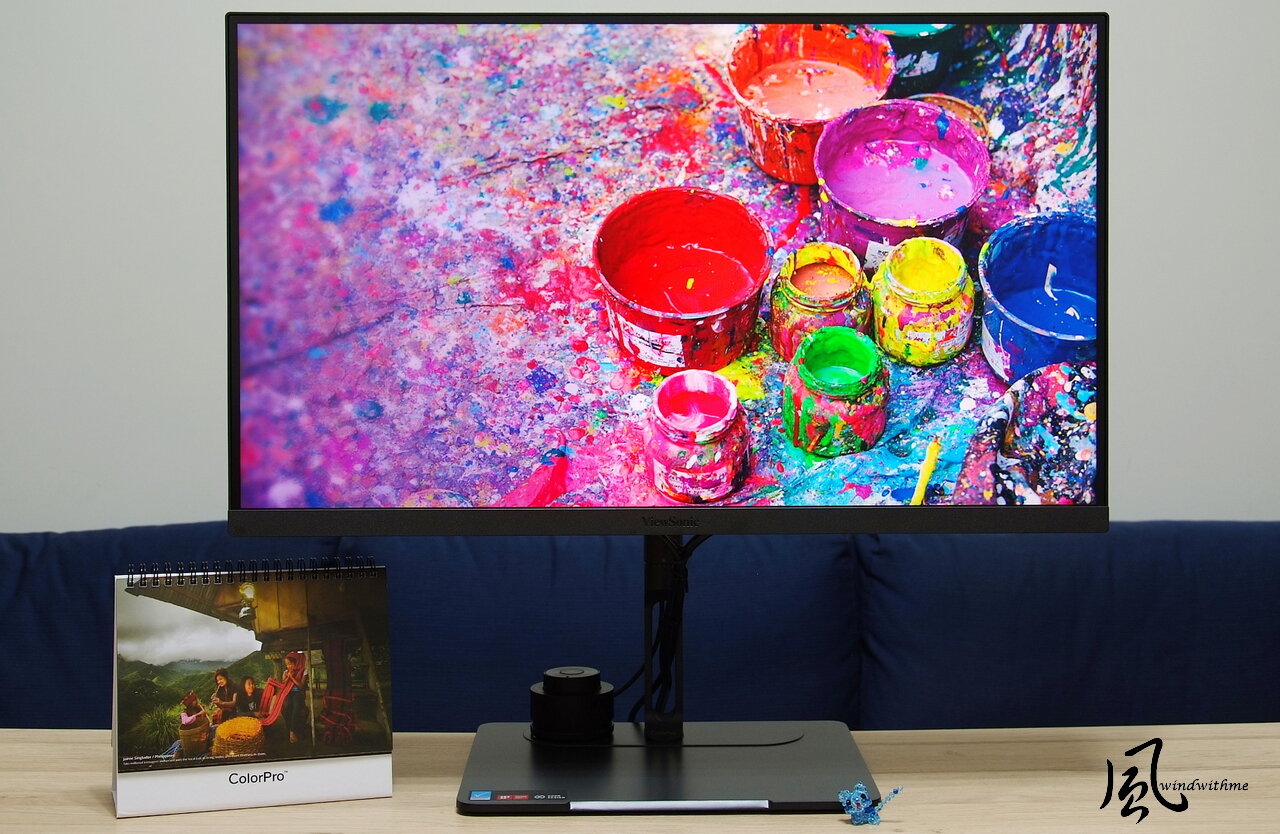
The Setup Menu has three pages in total, with options for Language Select, Adaptive Sync, Resolution Notice, PureXP, Information, OSD Timeout, OSD Background, OSD Pivot, Power Indicator, Auto Power Off, Sleep, Multi-Picture, ECO Mode, Overscan, Response Time, USB Charging, Backstage Lighting, Burn-in Eraser, DDC/CI, Rename, and All Recall. The backlight on the rear of the monitor can be set to white, yellow, and warm white in Backstage Lighting. This is the first time I’ve seen a Burn-in Eraser function, too. The comprehensive OSD, together with the two exclusive software packages and integrated calibrator, provide rich options and a high degree of freedom in adjusting color. HDR technology has become increasingly widespread in recent years, and whether or not a monitor supports it will be reflected in the price. When enabled, the details of an image’s blacks and bright areas are displayed to the full, enriching the colors. Whether to use HDR or not is one more advanced option to have when enjoying games or video that support it. HDR video is not easily compared, so I’m using a game to compare the differences—HDR off: HDR set to Standard: Options for Standard, HDR_M (medium), and HDR_H (high) can be chosen from the OSD. I should note that image quality has deteriorated a little in each case after using a camera to photograph the screen. Actual picture quality ought to be judged with one’s own eyes. Turning on HDR does indeed improve the picture. The VP2776’s Type-C port is very convenient, and can be used with notebooks and mobile devices that support video output. After installation, the monitor displays the device output and provides a charging capacity of up to 90W, effectively saving space by reducing the number of chargers on your desktop. Install ColorPro Integrate and you can use the calibrator wheel to control supported third-party software, including Photoshop, Premiere, and Capture One. This feature is currently only available on Mac; I look forward to seeing it become available for Windows and for even more software to be supported. The removable hood can be attached quickly to make a darkroom and prevent ambient light from interfering with the monitor color. I started using a calibrator some years ago. I couldn’t help myself calibrating any monitor or notebook that would come into my hands before using it. Owing to differences in the types and specifications of different panels, there’d still be slight discrepancies in color after calibration, but this was always an improvement over no calibration at all. Beyond the VP2776’s color precision, it makes for comfortable viewing and reduces the burden on your eyes, as compared with the calibrated VA and IPS monitors I have to hand. A summary of the VP2776’s features: the leading ColorPro model, with a top-quality and fabulous-looking multifunctional stand and base, and exclusive color calibration reporting validated by Pantone. It boasts precise and professional color at Delta E < 2, Delta Lv < 5%, and DCI-P3 95%. The Nano IPS panel is G-Sync Compatible, with a 165Hz refresh rate, HDR 400 technology, and inbuilt HDMI, DP, and multifunctional Type-C ports, of which Type-C supports a charging capacity of up to 90W. It has a brand-new OSD interface, two exclusive software packages with rich capabilities, and integrated support for its color calibrator. I’ve been writing and sharing my reviews on the net since before 2001, and editing photos has been part of my daily life for ten years now. When I was starting out, I looked for cameras that could give me quality images and colors and chose monitors with high-end panels, expecting that they would display satisfactory product photos. In the process, I minimized the variables that lead to color casts, shortening time spent in the edit and getting the photos I wanted even faster. It was only when I first used a color calibrator all those years ago that I understood that, besides the importance of camera color and the quality of the monitor panel, the monitor’s color accuracy is the last crucial factor in the pursuit of precise color. During my time using the VP2776, I could feel the considerable work that’s been put into integrating hardware with software. The high-end calibrator and magnetic hood included with it are unique and practical features. Together with its high Mac compatibility and less commonly seen Nano IPS panel, the VP2776 is built for color, with a top-tier design both inside and out. With Pantone Validated color calibration straight from the factory, a top-notch calibrator, high-spec hardware, and rich software capabilities, if you’re a creative working in video and with high standards for color accuracy over prolonged use, then the VP2776 will be a good choice to meet your needs, and is well worth considering.
-
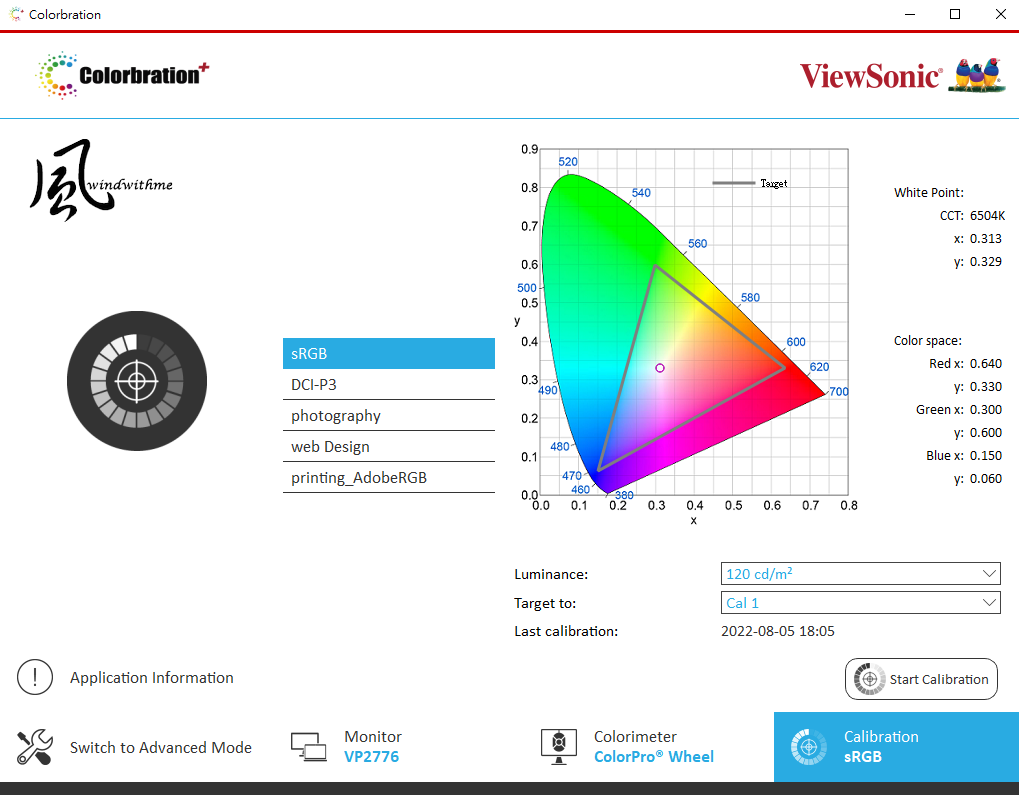
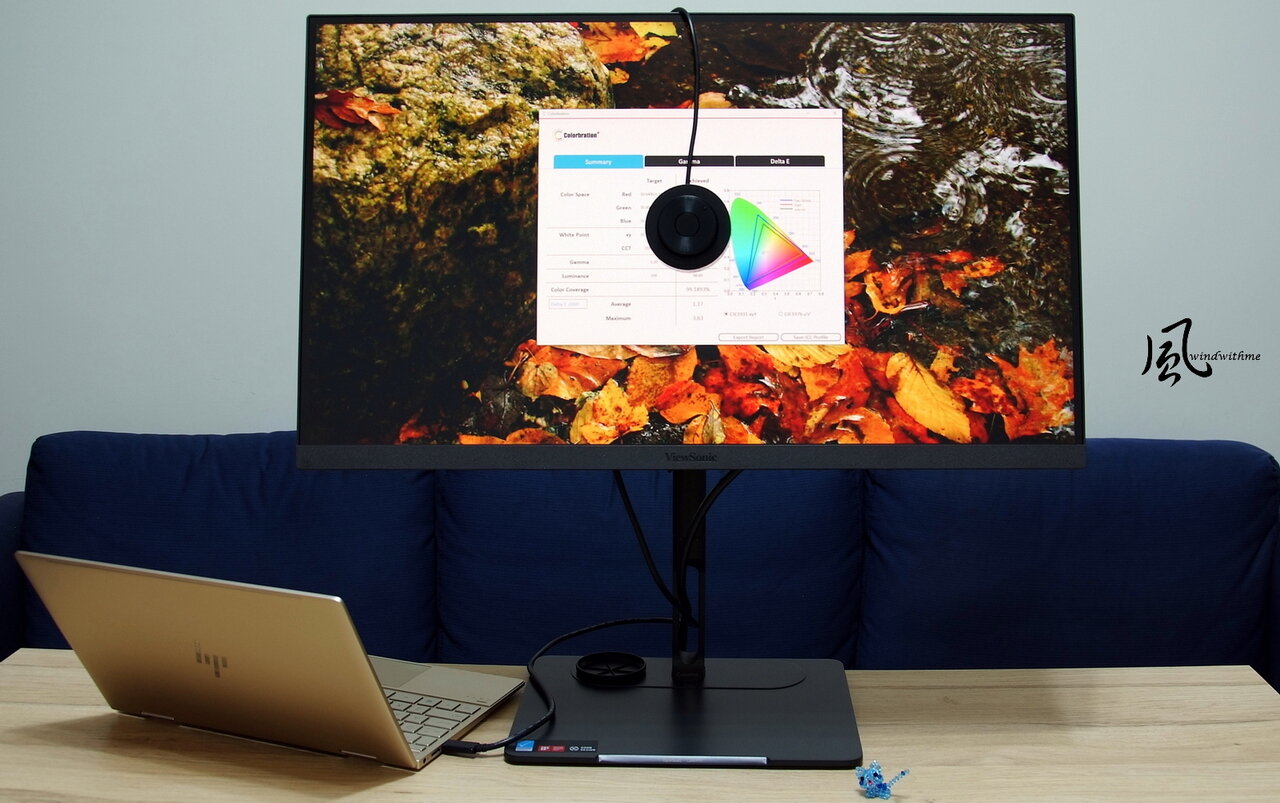
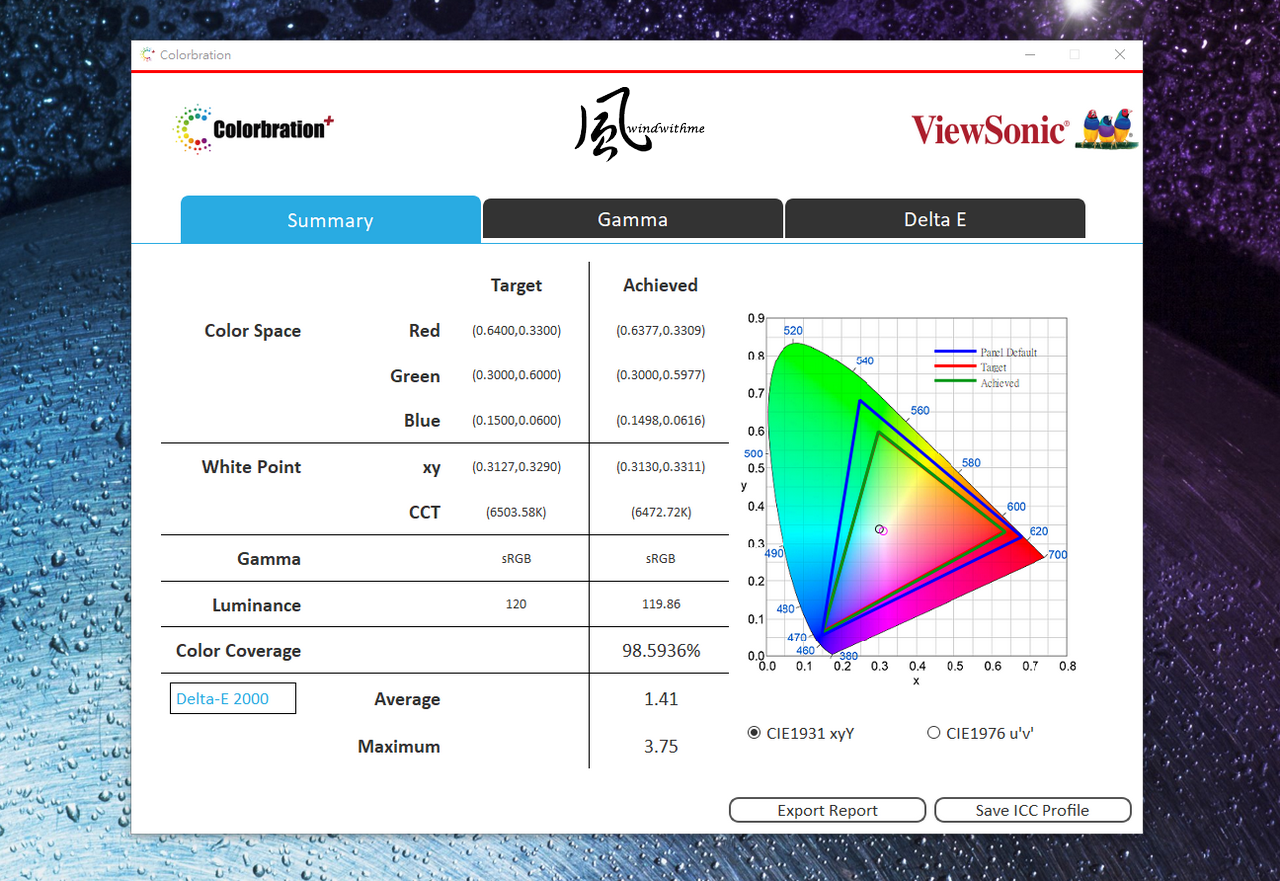
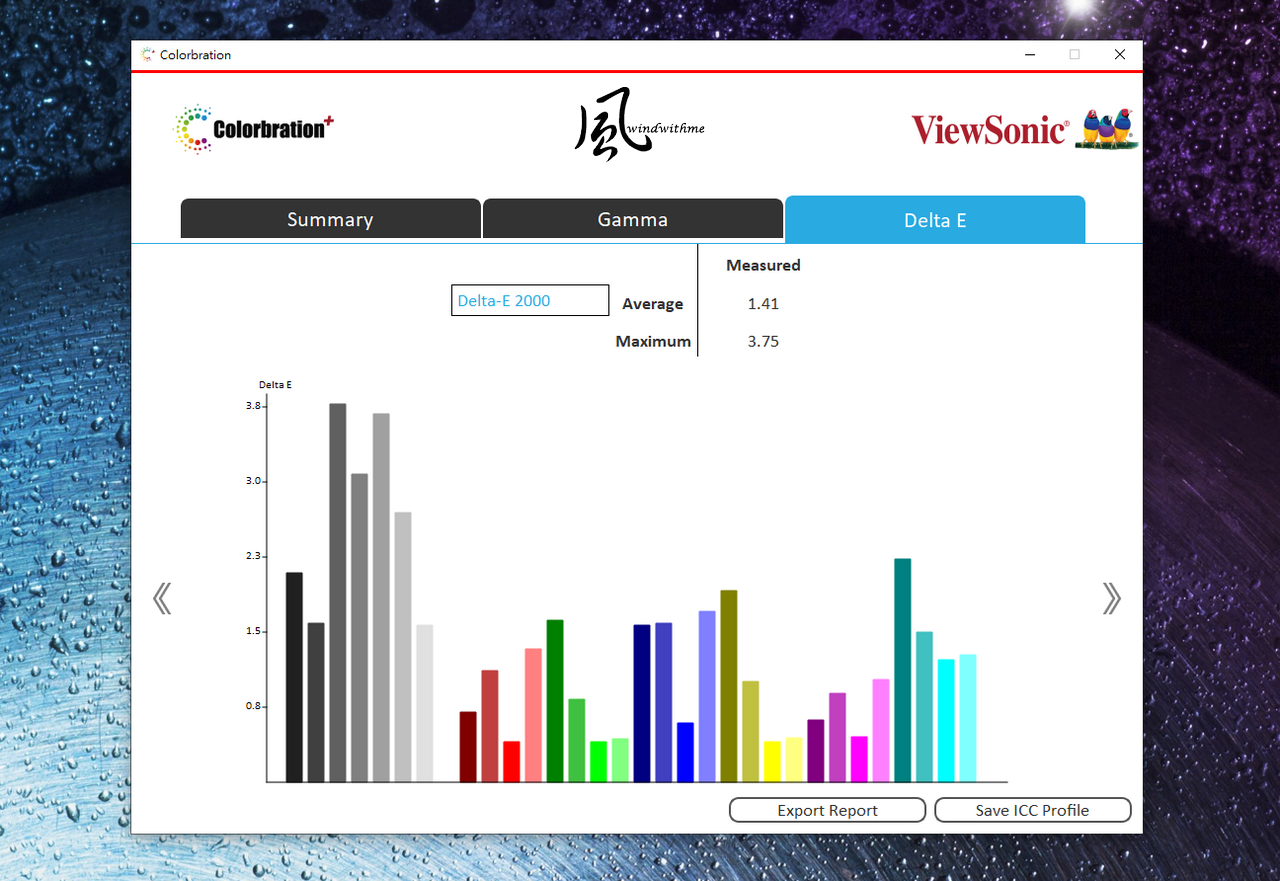
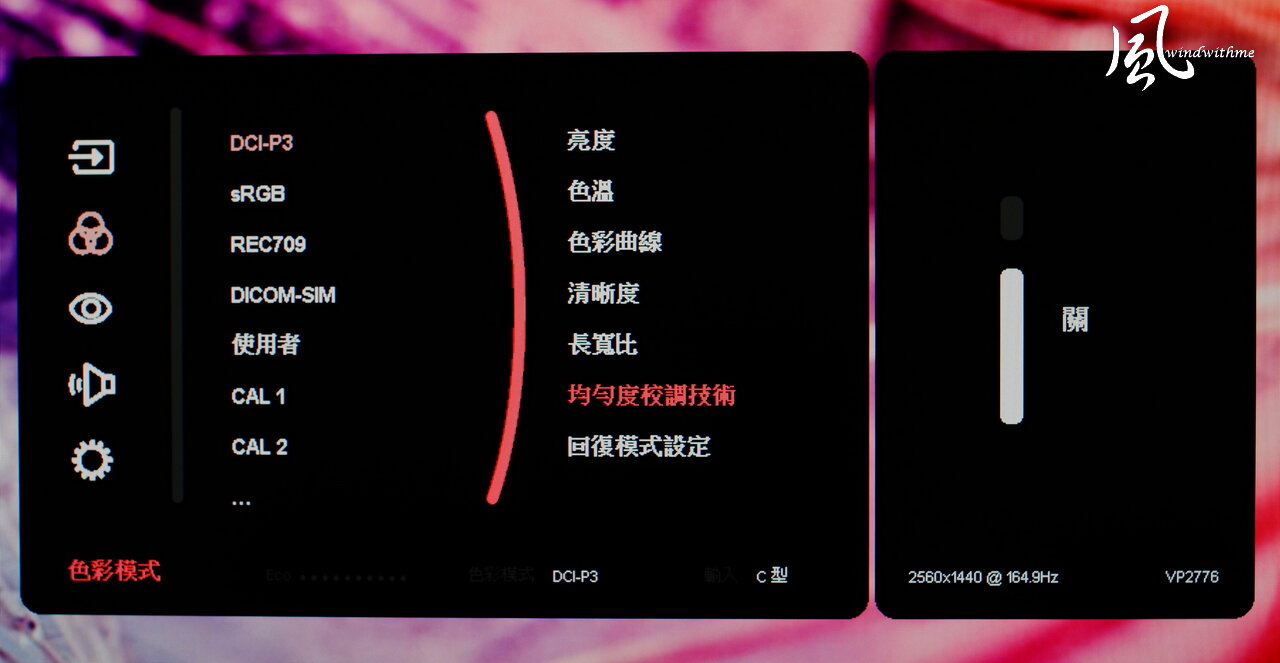
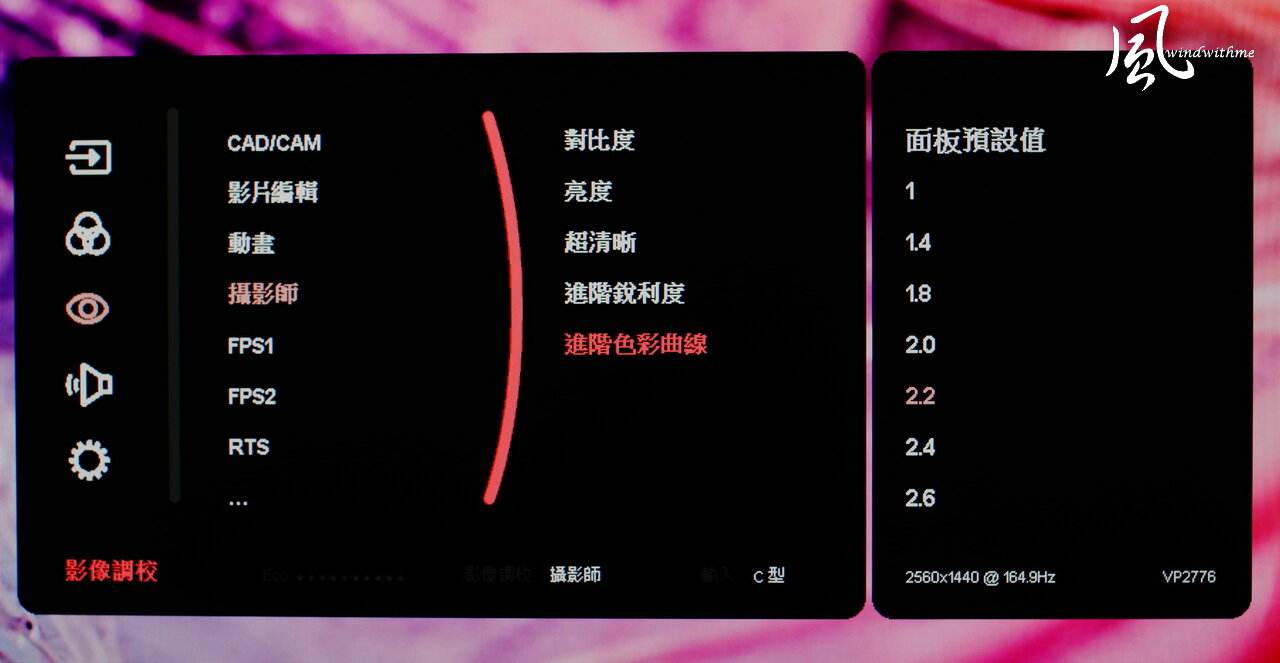
History details previous color calibration profiles for comparison or application. Basic Mode shows the info below. Luminance and calibration can be adjusted and saved to a particular profile at the lower right. Color gamuts for sRGB, DCI-P3, photography, web Design, and printing_AdobeRGB can be calibrated on the left-hand side. Select an option to begin color calibration. After testing out a few color profiles, the time taken to switch between them was quite fast. Calibrations were completed in about 1m 20s, after which corresponding reports were generated. The report’s Summary, Gamma, and Delta E tabs detail the color gamut and related info. The Delta E page presents the data recorded in the form of a bar graph. The VP2776 displays true-to-life colors at Delta E < 2, and has a Delta Lv < 5% standard that emphasizes professional color with greater precision. A photograph of the OSD menu: Moiré patterns usually appear when LCD screens are photographed with digital cameras, although the monitor display appears normally to the naked eye. Quick Mode features options for Main Menu, Color Mode, ViewMode, Brightness, Input, and Volume. The curved line on the left indicates that the menu may be navigated by rotating the calibrator wheel. Color Mode has options for DCI-P3, sRGB, REC709, DICOM-SIM, User, CAL 1 to 3, and HDR. DCI-P3 provides options for Brightness, Color Temperature, Gamma, Sharpness, Aspect Ratio, Uniformity, and Recall. Calibration profiles are stored in the CAL modes. The time at which a profile was created is recorded, along with a useful calculation of how long it has been in use. Reminders can be set at specified intervals to maintain accurate color calibration—the first time I’ve seen such a meticulous design detail. Using the calibrator wheel, profiles can be produced, imported into the OSD, and renamed. ViewMode brings up options for CAD/CAM, Video Edit, Animation, Photographer, FPS1, FPS2, RTS, and MOBA modes. Select an environment, and detailed options appear for fine-tuning according to your needs. For example, Photographer mode has settings for Contrast, Brightness, Ultra Clear, Advanced-Sharpness, and Advanced-Gamma.